 elsea
← Back to Elsea
elsea
← Back to Elsea
elsea
← Back to Elsea
elsea
← Back to Elsea
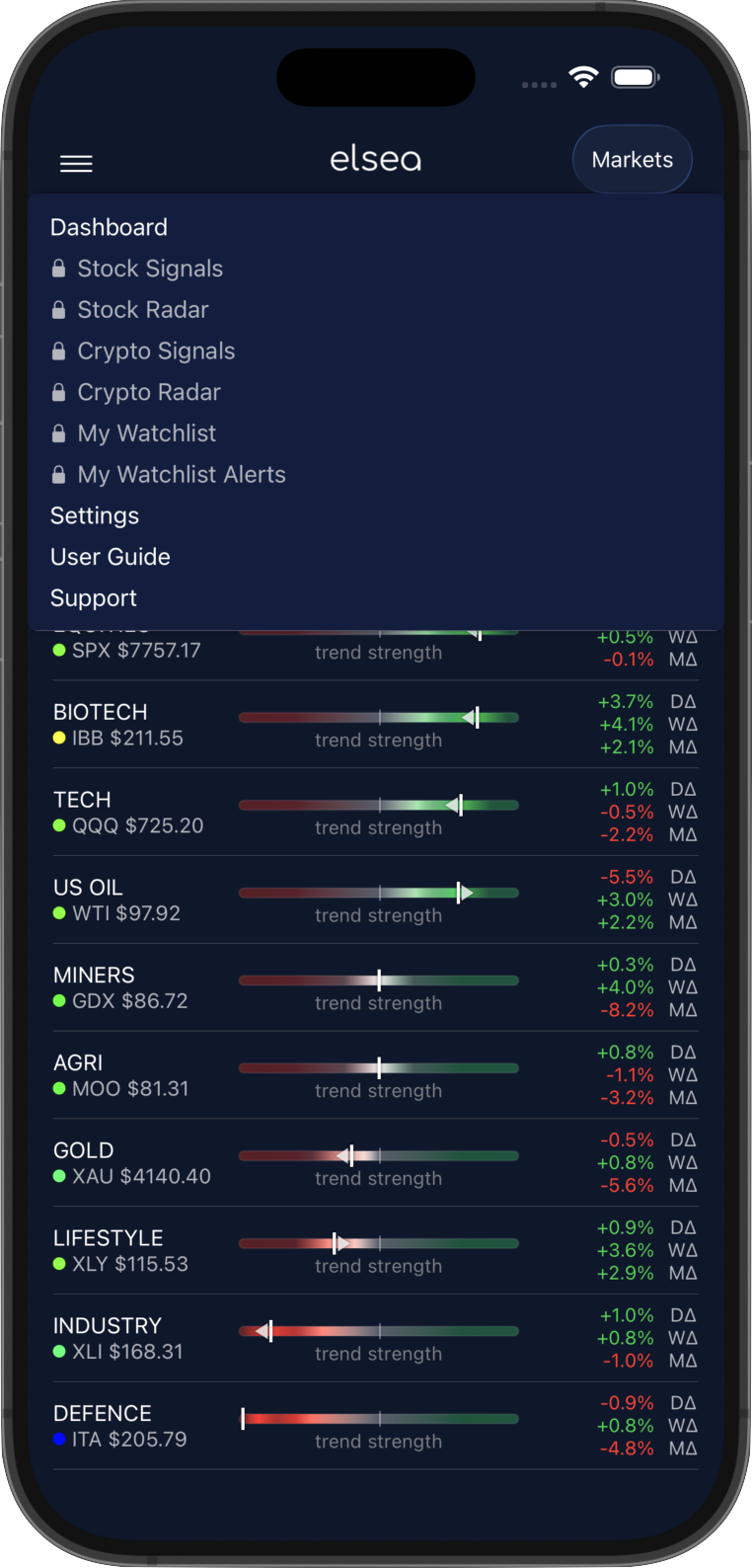
The app opens at the market dashboard. The markets & macro dashboards, and the Bitcoin risk models are free to use, with no sign-in required.
Signals, the Radars, the watchlist and watchlist alerts are part of an Elsea subscription, and show a padlock in the menu until a subscriber key is saved.
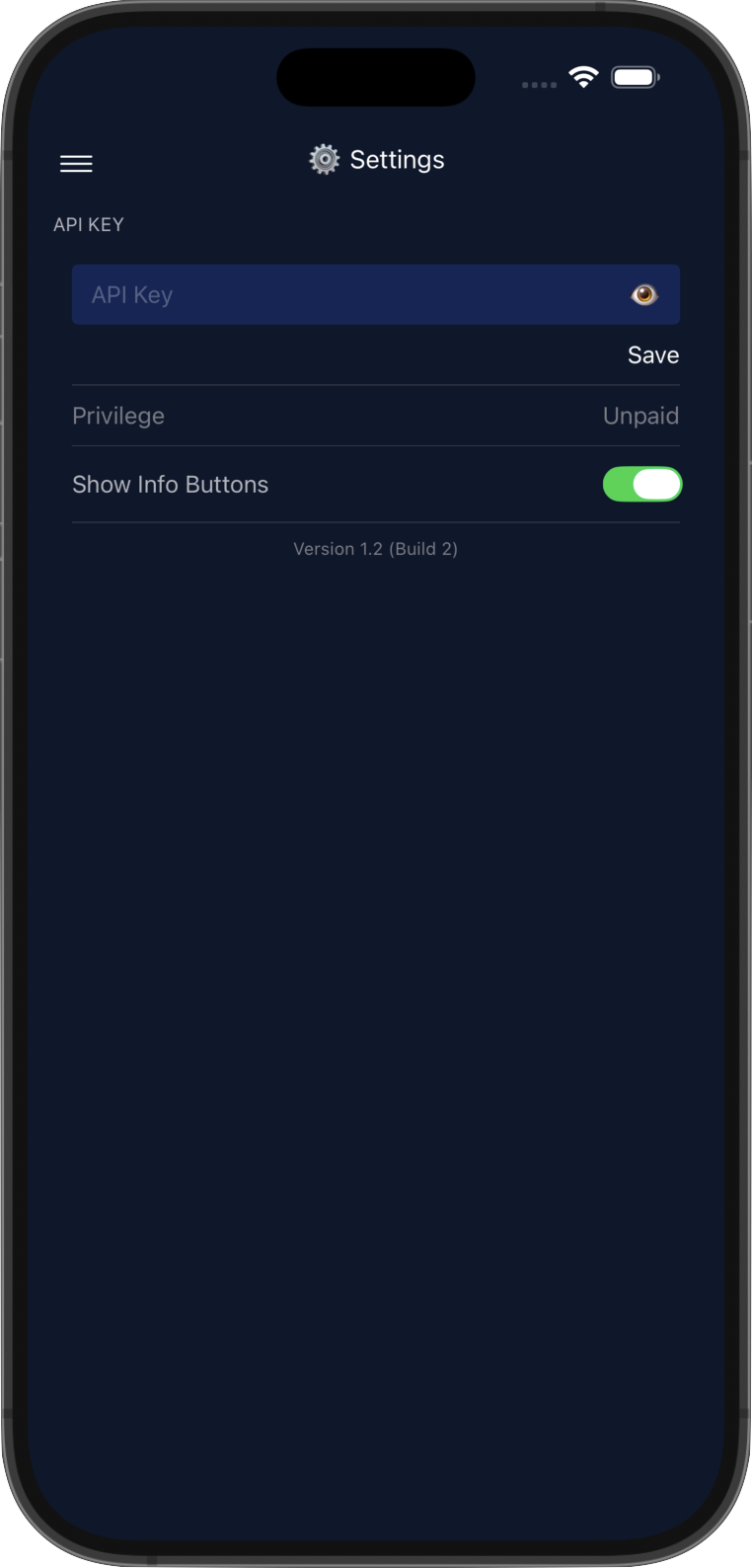
Elsea subscribers receive an API Key in their Telegram welcome message.
Go to User Settings, paste the key into the API Key field and tap Save. The
app reloads and unlocks every feature.
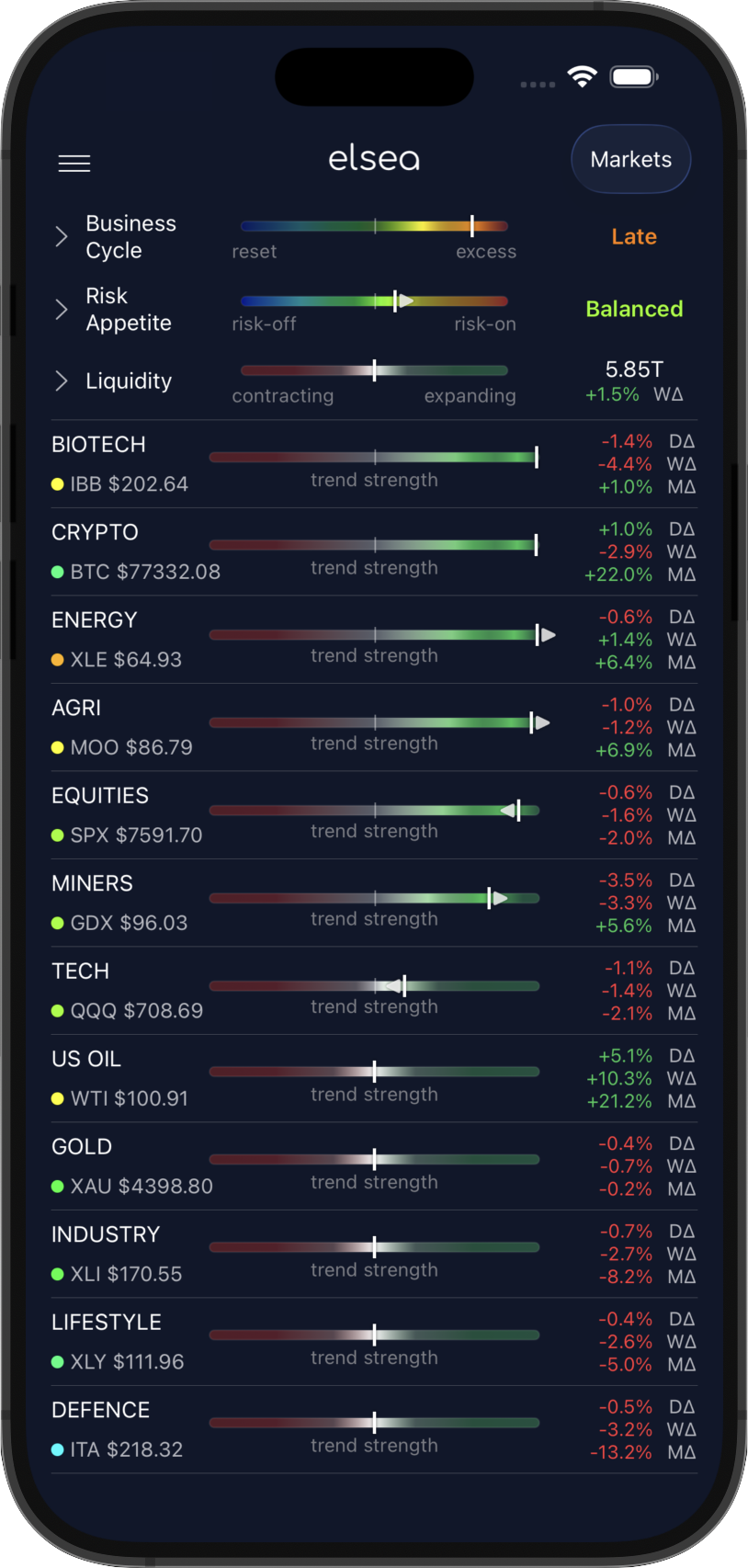
The app opens to the market dashboard, showing a macro summary followed by sector performance.
In the macro summary, tap the chevrons on the left to expand each item, revealing further information and macro charts.
Sector performance is ordered by the Trend Strength of each proxy, and the coloured dot shows its current Heat reading. Tap a sector for more detail.
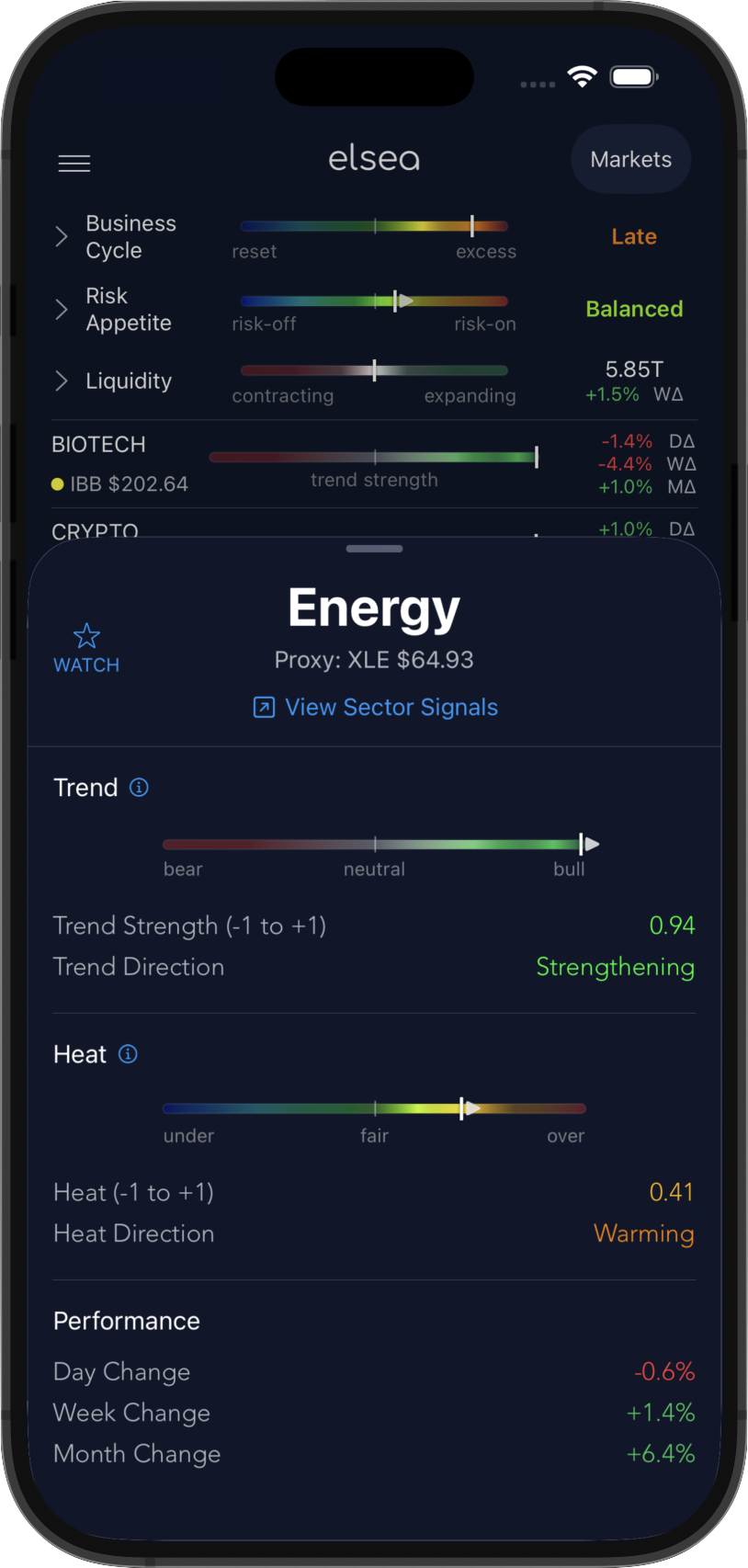
Tapping a sector opens its detail sheet, showing Trend Strength and Heat with the direction of each, plus day, week and month performance. Swipe left or right to move between sectors.
Subscribers can tap Watch to add the sector to their watchlist and receive daily alerts for every stock in it, or View Sector Signals to see that sector's full set of signals.
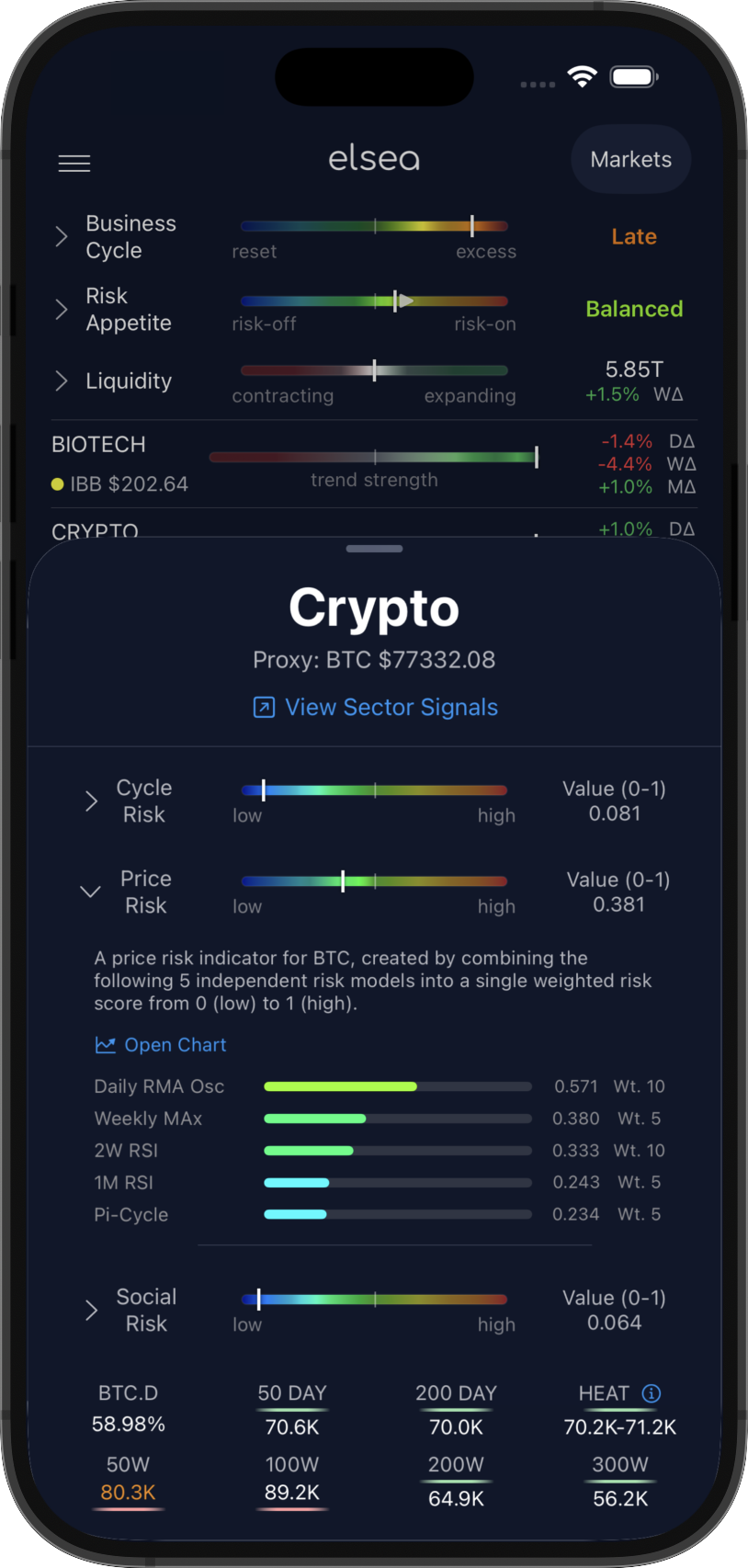
The crypto sector sheet adds Bitcoin-specific detail: Cycle, Price and Social Risk, Bitcoin Dominance, the Heat Band and moving averages, and the Fear & Greed index. Tap the chevrons to expand each risk item, revealing further information and charts.
Subscribers can tap Watch to add the sector to their watchlist and receive daily alerts for every coin in it, or View Sector Signals to see the full set of crypto signals.
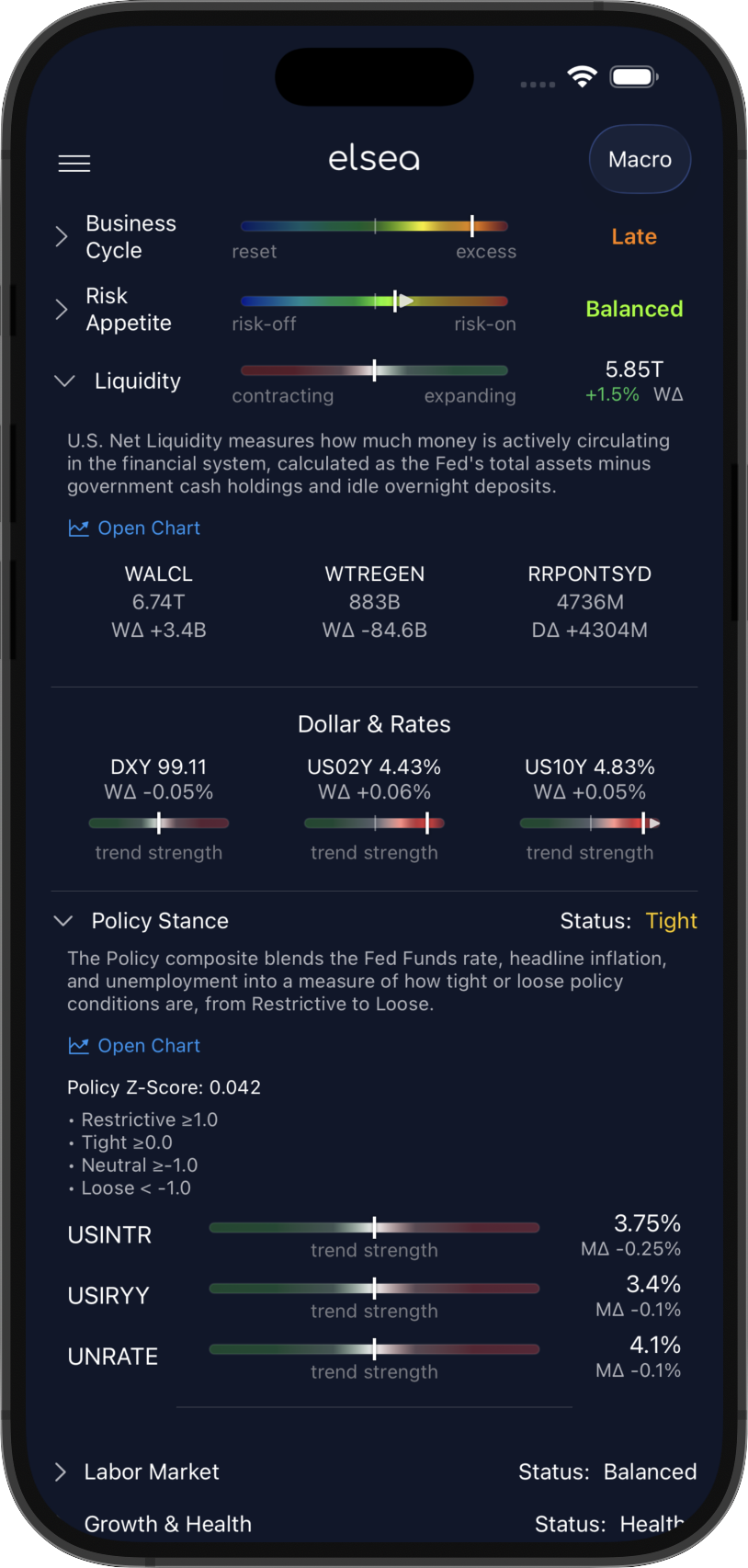
The top-right button switches between the Markets and Macro dashboards.
On the macro dashboard, the macro summary is followed by a Dollar & Rates section, then three macro composites: Policy Stance, Labor Market, and Growth & Health, each with its current status.
Tap the chevrons on the left to expand each composite, revealing further information, its components, and charts.
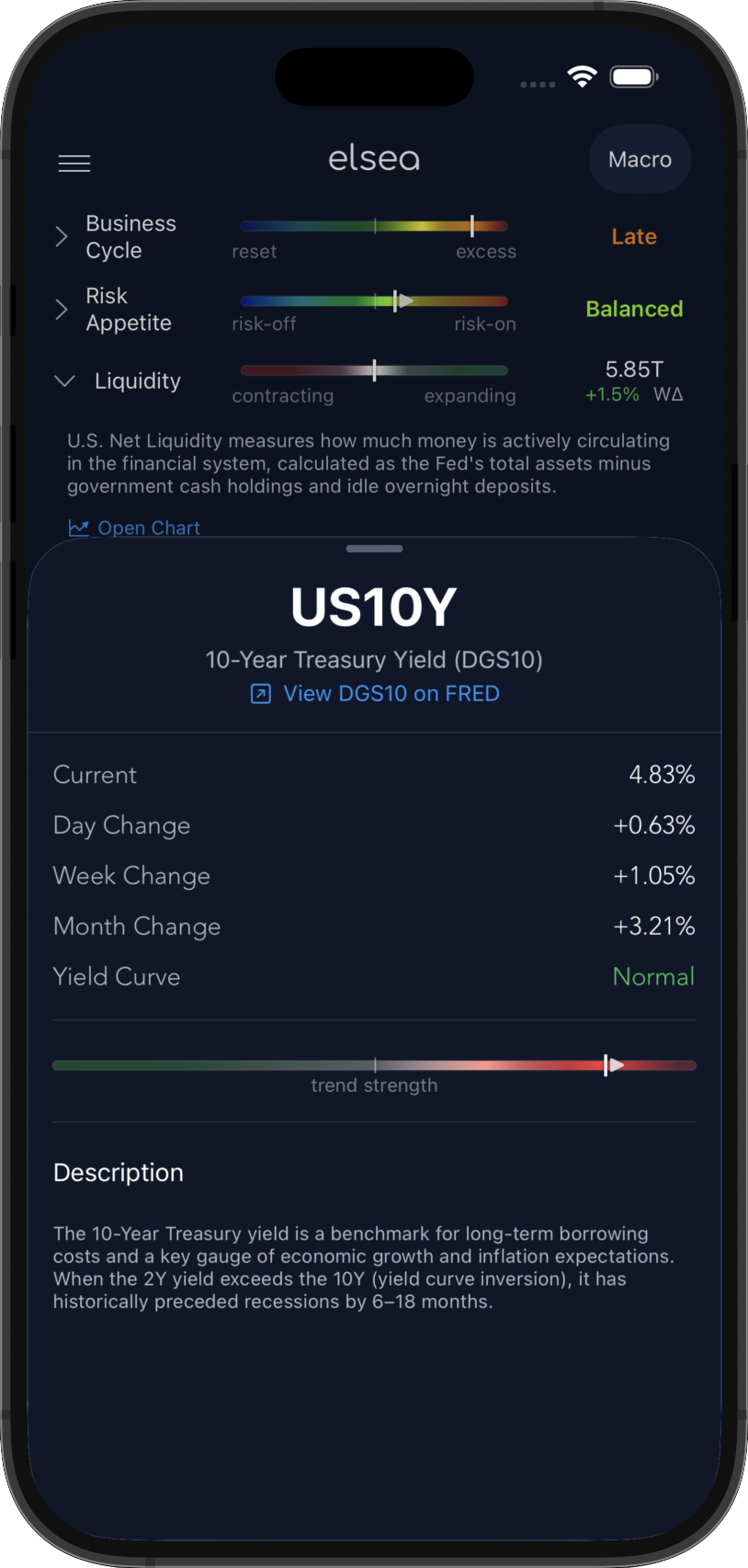
Tap any individual series, such as DXY, a Treasury yield, or a composite component like ISM, to open its detail sheet.
The sheet shows the current value, day, week and month changes, and Trend Strength, along with a description of what the series measures and why it matters.
Tap the source link to view the underlying data and its full history.
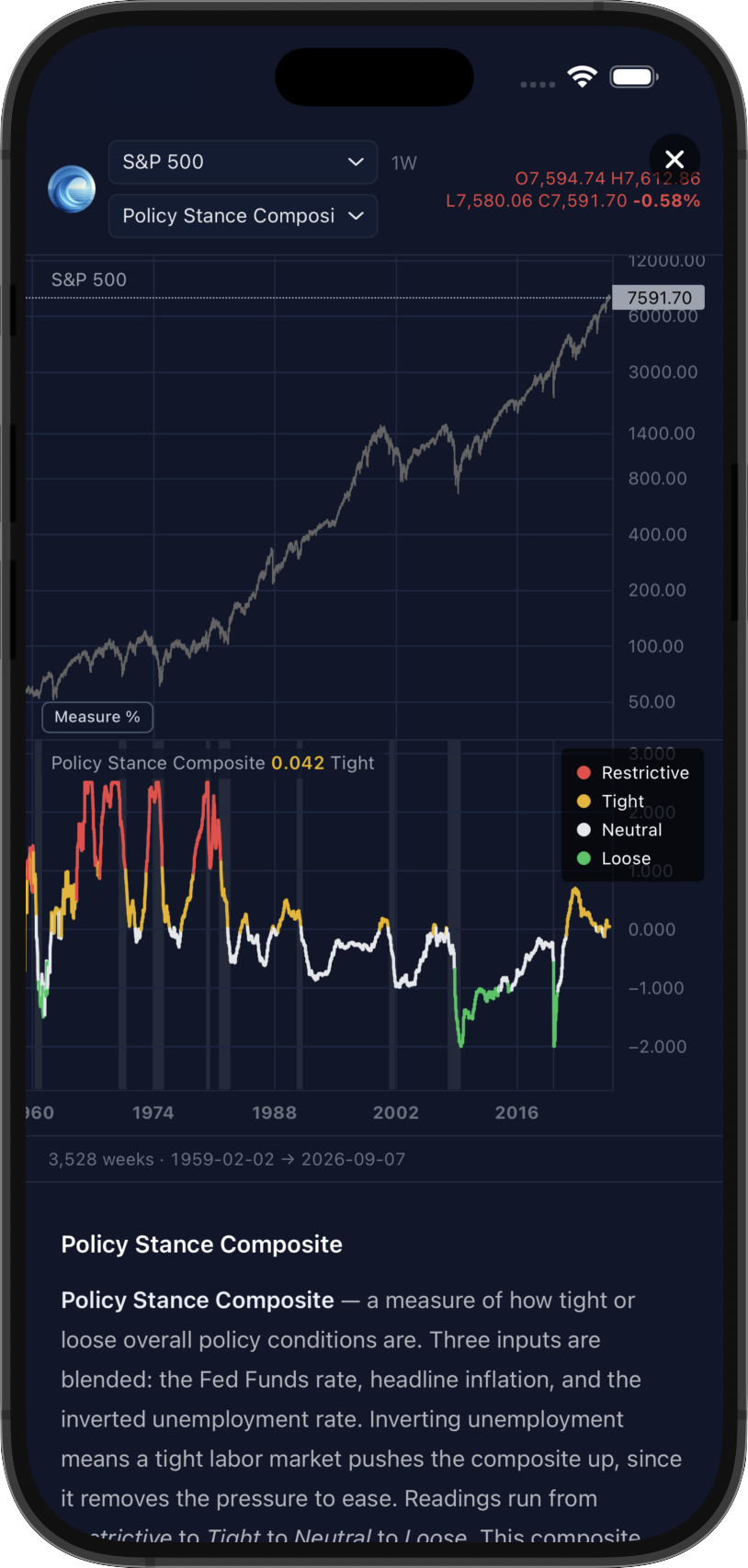
Tap Open Chart on a macro composite to view its full-screen chart and explanation.
Use the top menu to plot it against an asset of your choice, such as the S&P 500, and the second menu to switch between composites. Grey bands mark past US recessions, so you can see how each composite has behaved around them over decades of history.
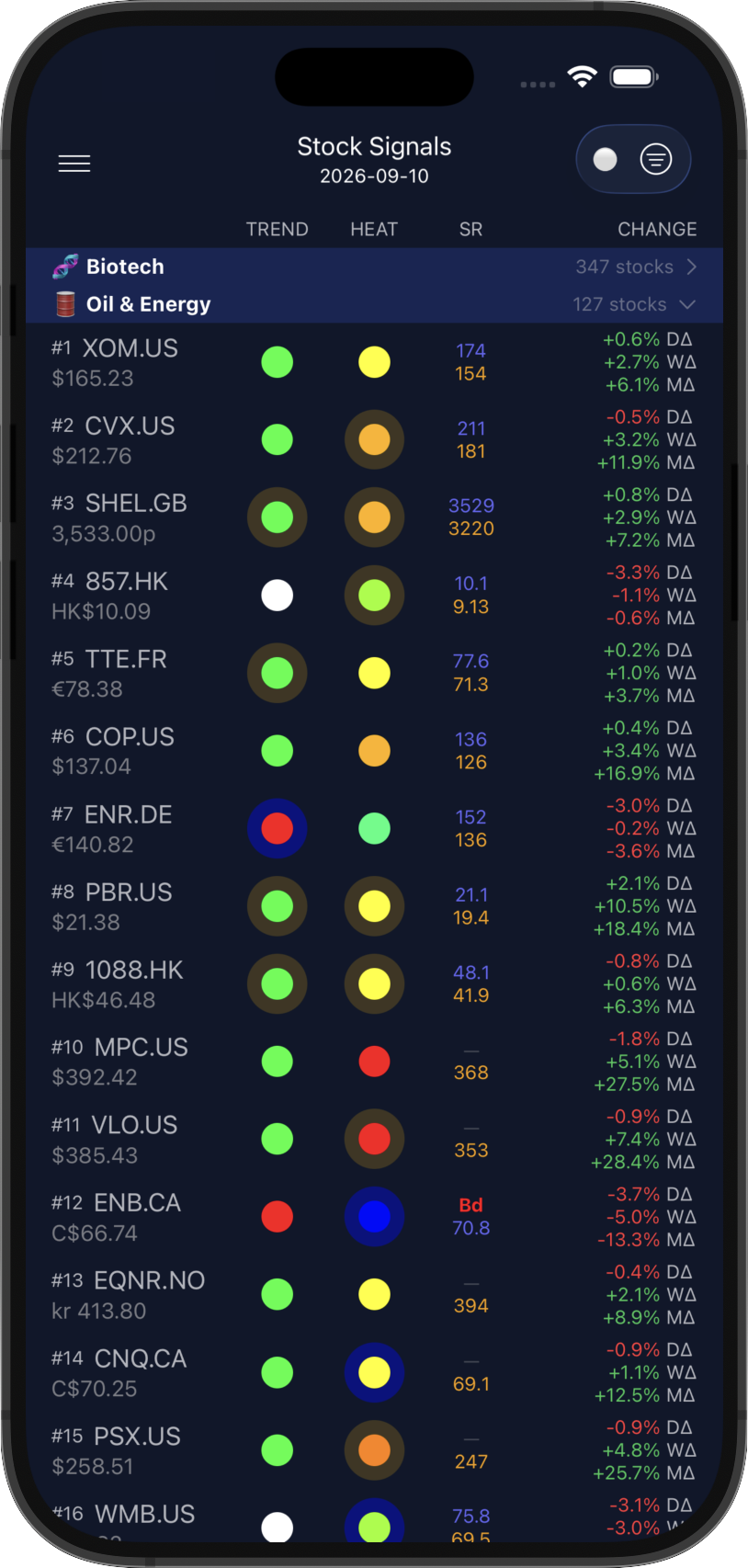
Stock signals are grouped into buckets, each linked to a sector on the markets dashboard. Within each bucket, stocks are ranked by USD market cap, largest first.
Each row shows the ticker and location suffix (e.g. .US, .AU), local-currency price, Elsea's Trend, Heat and Support & Resistance (SR) signals, and day/week/month performance.
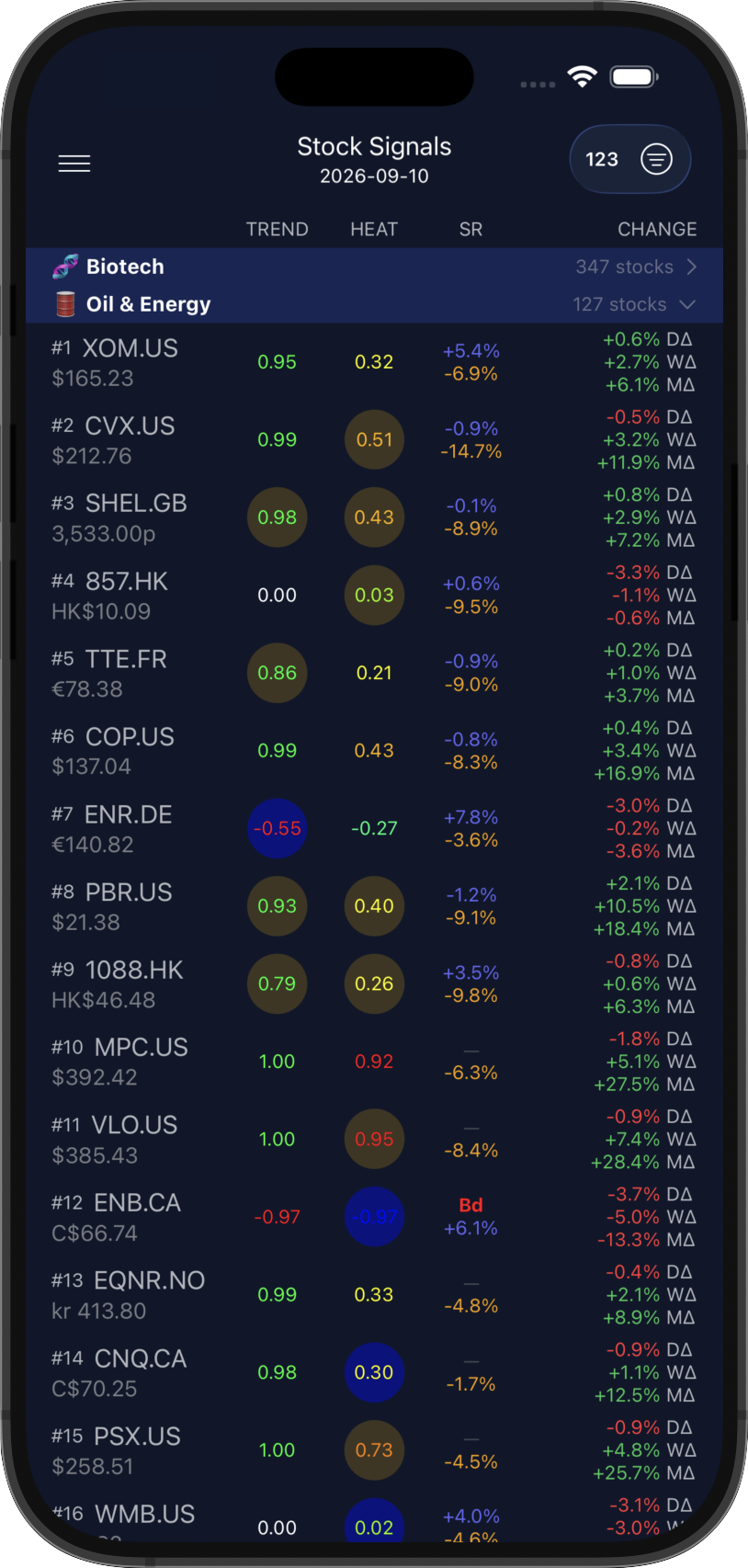
Use the top-right button to switch between Dots and Values, and set 'Default Signal Display' in User Settings to keep your choice.
Dots show Trend state, and Heat from blue (under) to red (over). Values show the raw -1 to +1 readings.
Shading shows direction: yellow for strengthening or warming, blue for weakening or cooling. SR shows the nearest levels as prices in Dots, or percentage distance in Values.
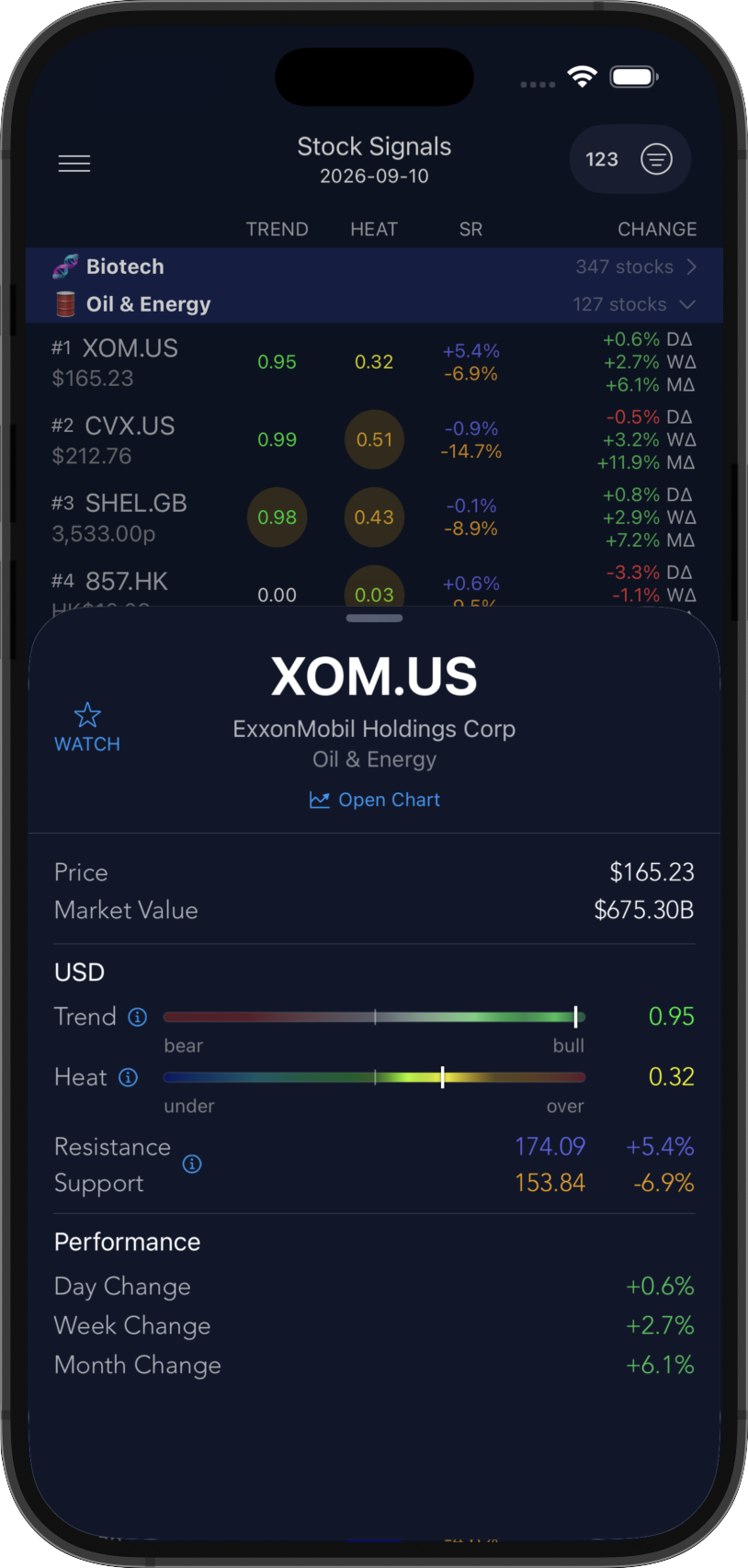
Tap a stock to open its detail sheet, showing its full name, the buckets it belongs to, price and market value. Below are Trend and Heat, the nearest Support & Resistance levels with any SR event (e.g. Bo breakout, Bd breakdown), and day/week/month performance.
Tap Open Chart for the stock's full history with its indicators, or Watch to add it to your watchlist for comprehensive daily alerts. Swipe left or right to move between stocks.
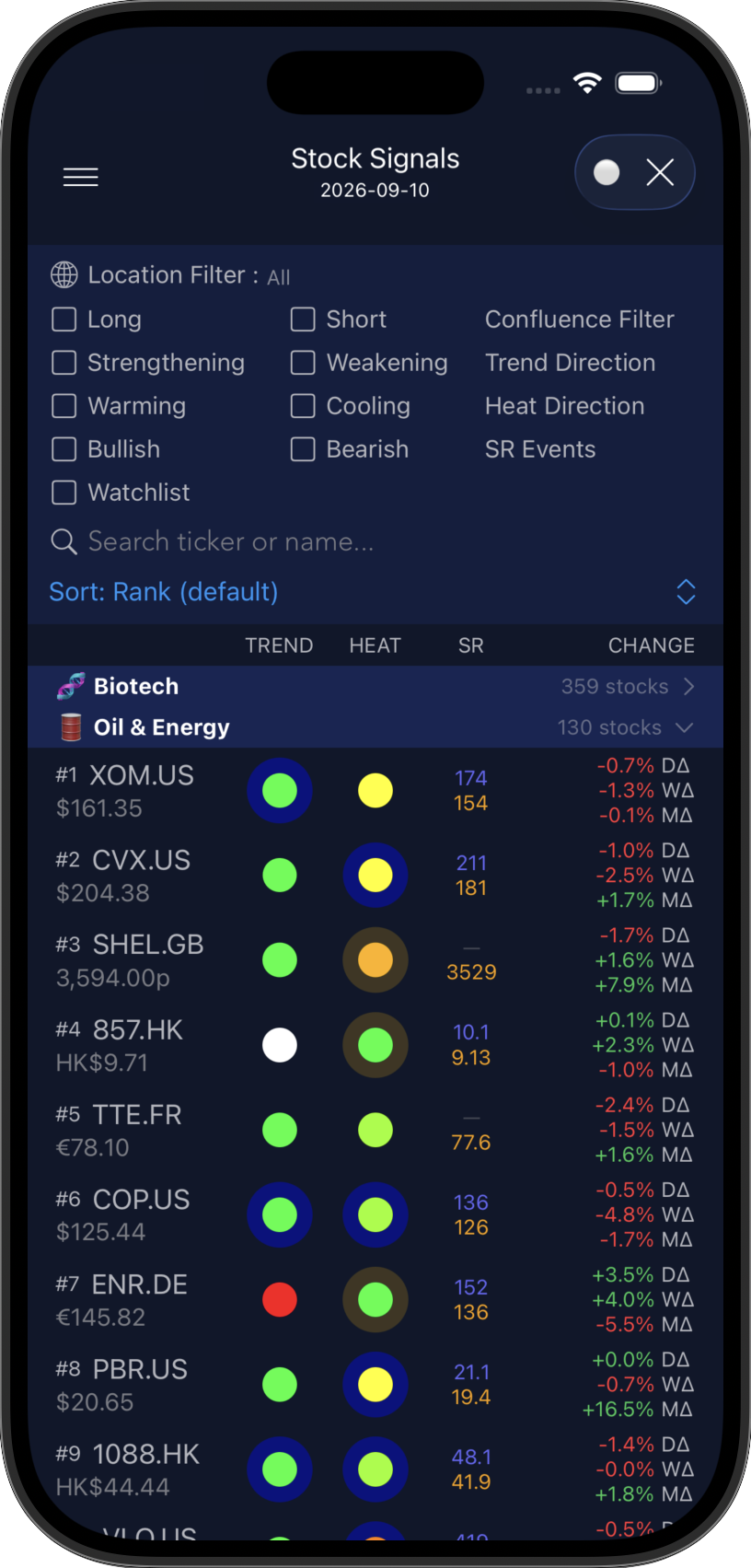
Next to the Dots / Values button is the filter.
Filter on Trend & Heat Direction, SR Events, Watchlist, and Long or Short Confluence, which matches a set of conditions that are configured in User Settings. Selecting multiple filters narrows the list, as all conditions must be met.
The search field finds a stock by ticker or company name. If it isn't in Elsea, add it using your Watchlist.
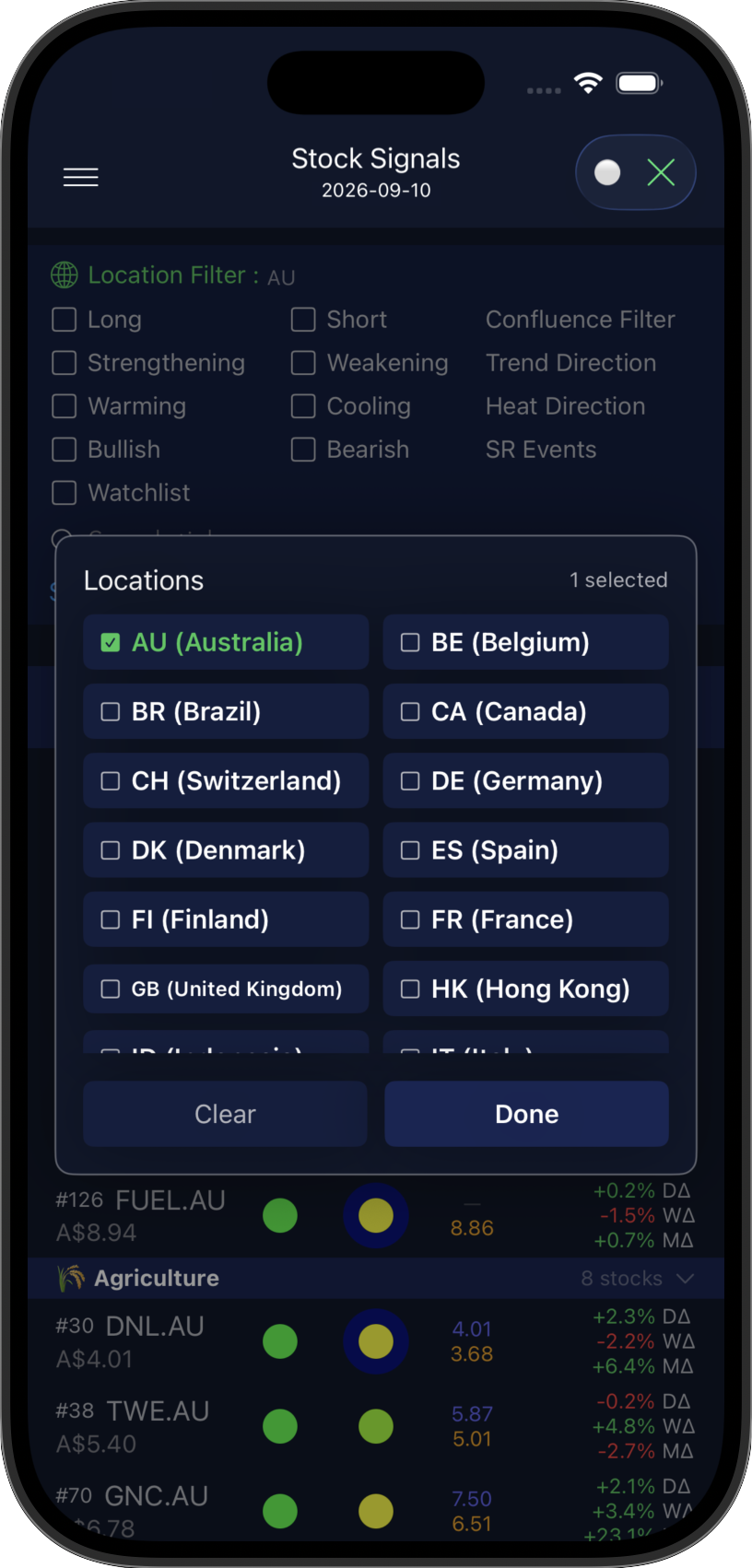
The Location Filter limits signals to the countries you choose. Tick the ones you want and tap Done.
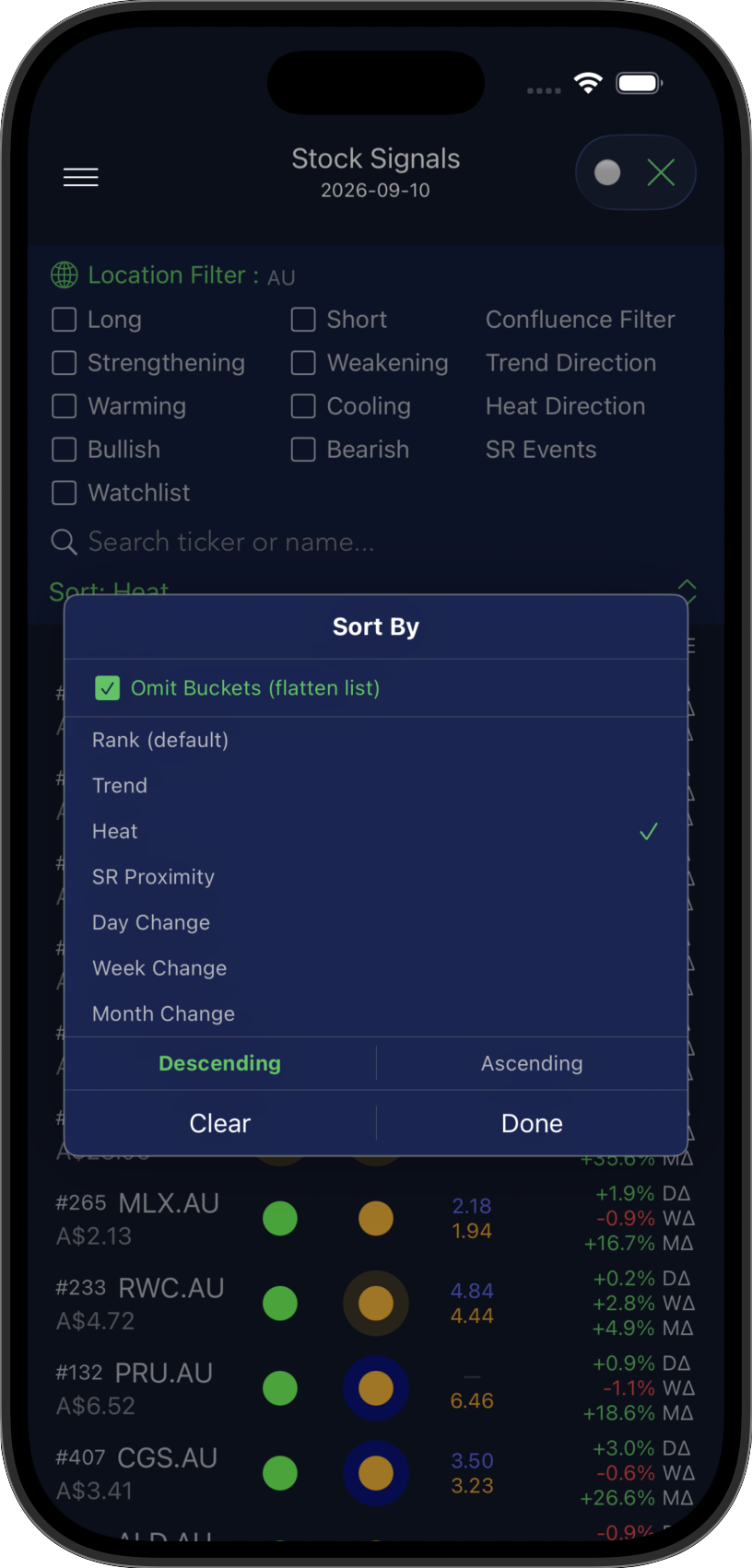
Tap Sort in the filter panel to control how the list is ordered.
Trend and Heat sort on their raw values, the same ones shown in Values mode. SR Proximity sorts by distance to the nearest level, making it easy to find stocks sitting close to Support or Resistance. Tick Omit Buckets to sort across every bucket as a single flat list.
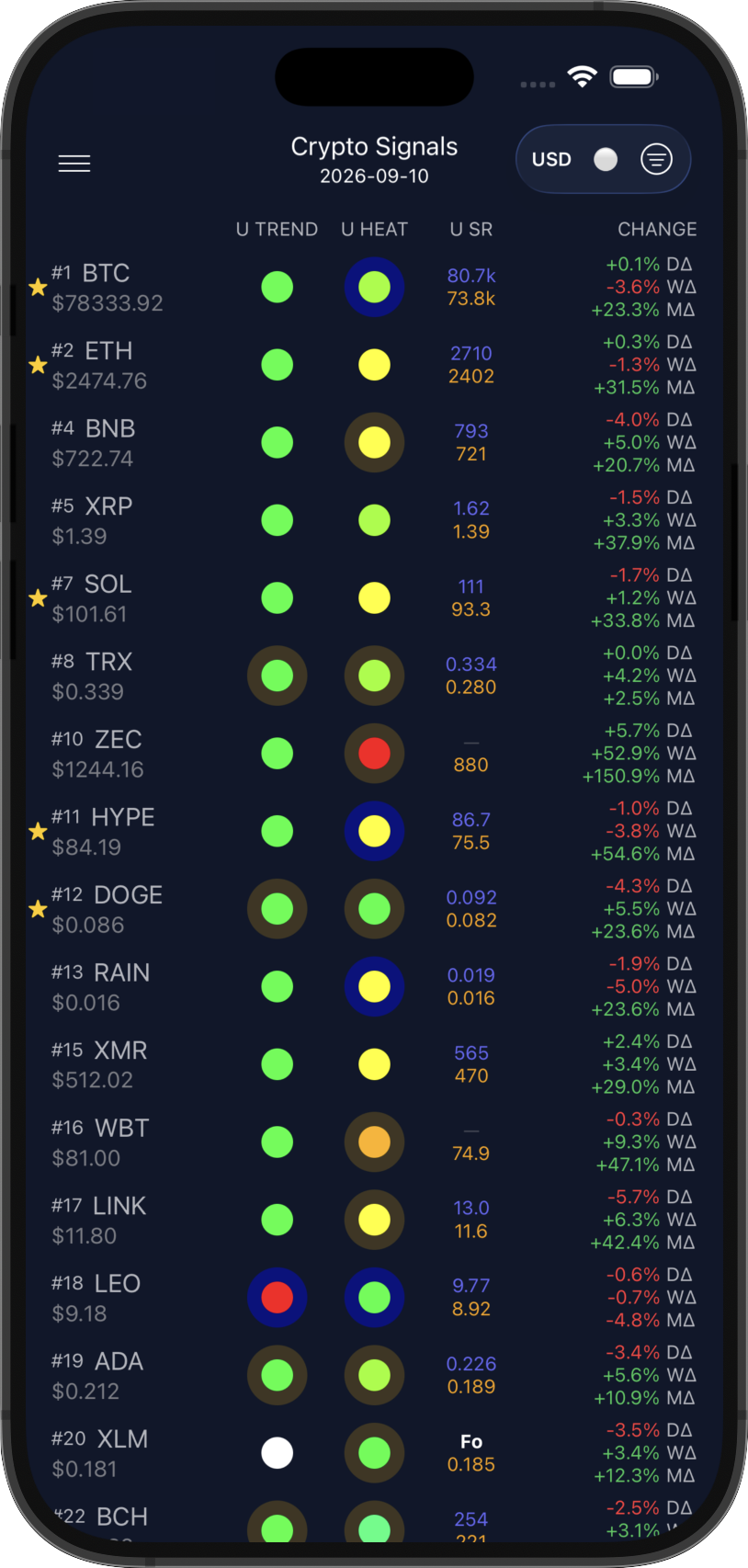
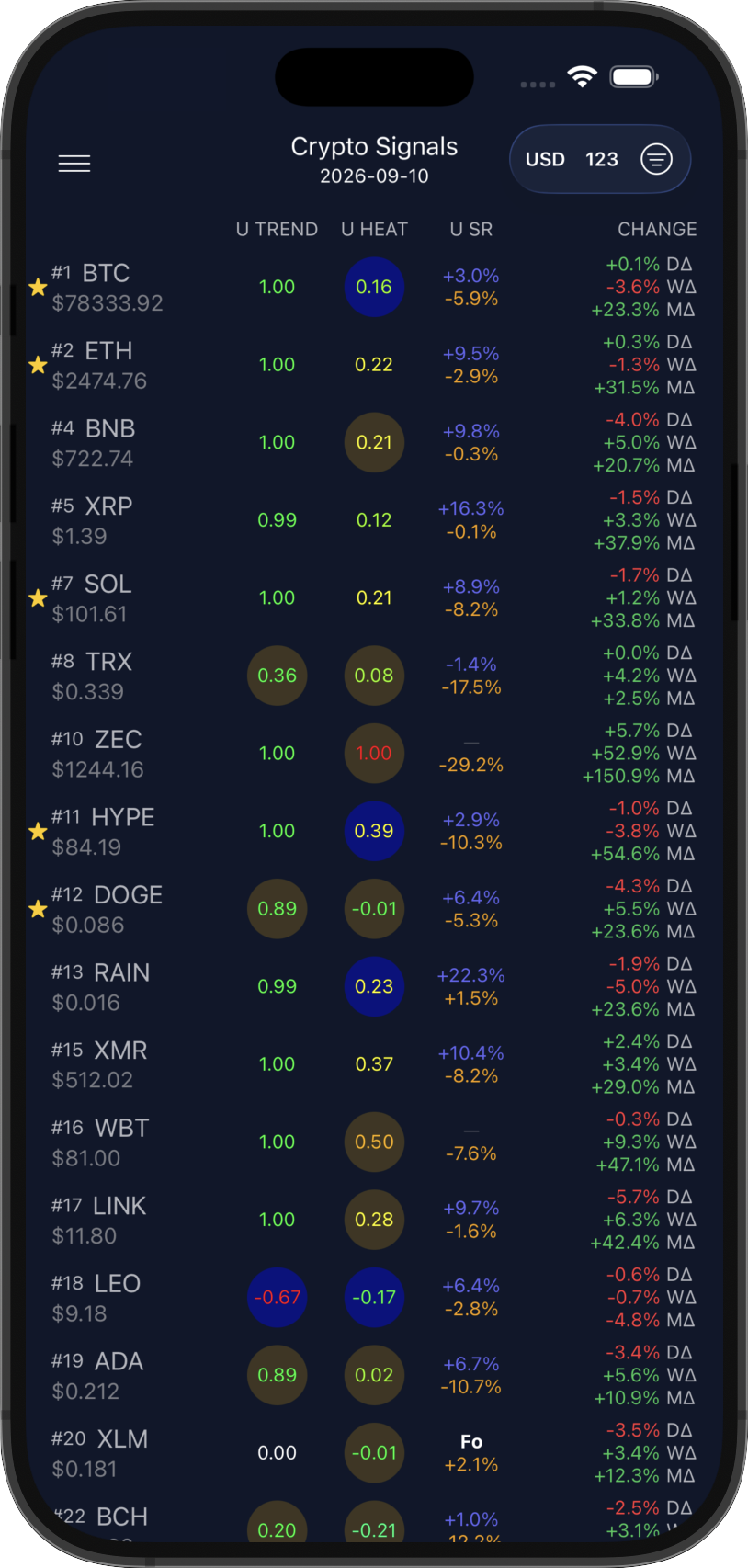
Crypto prices, signals and performance are denominated in either USD or BTC. Use the currency button at the top right to switch, or set 'Default Crypto Display' in User Settings to keep your choice.
Symbols are ranked by USD market cap, largest first, and each row shows the symbol, rank, and price. Next are Trend, Heat, and Support & Resistance (SR), followed by day/week/month performance.
Filtering and sorting works as it does for stocks, without the location and bucket options.
The Dots / Values button switches how signals are displayed. Set 'Default Signal Display' in User Settings to keep your choice.
Dots show Trend state, and Heat from blue (under) to red (over). Values show the raw -1 to +1 readings.
Shading shows direction: yellow for strengthening or warming, blue for weakening or cooling. SR shows the nearest levels as prices in Dots, or percentage in Values.
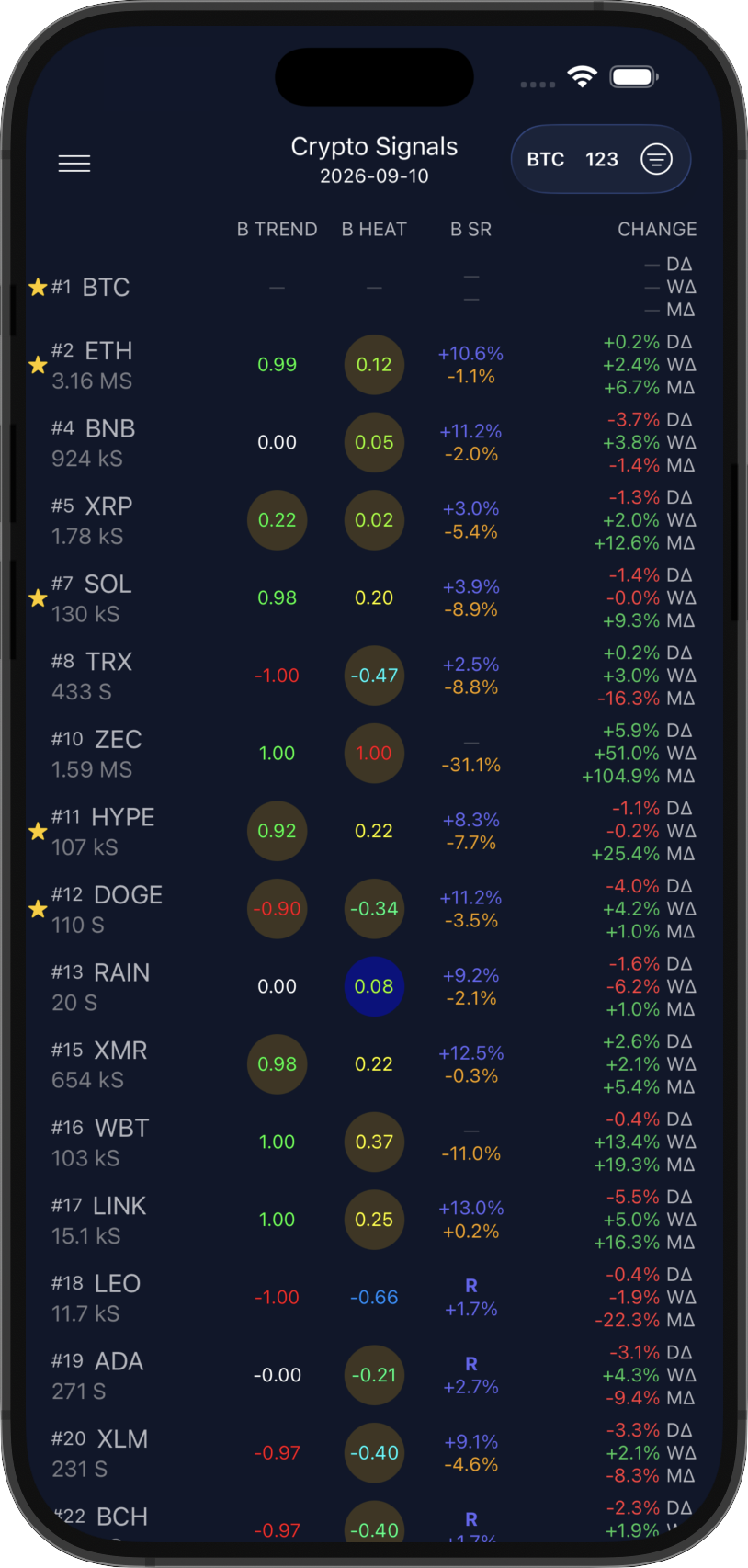
In BTC mode everything is measured against Bitcoin, shown by the B prefix on each column. Prices appear in satoshis (S, kS, MS), and BTC's own row is blank as it is the benchmark.
The reasoning is simple: moving into altcoins means taking on more risk, and it only makes sense if that coin outperforms Bitcoin. A coin can be rising in USD while still losing ground to BTC, and the USD view alone won't show it.
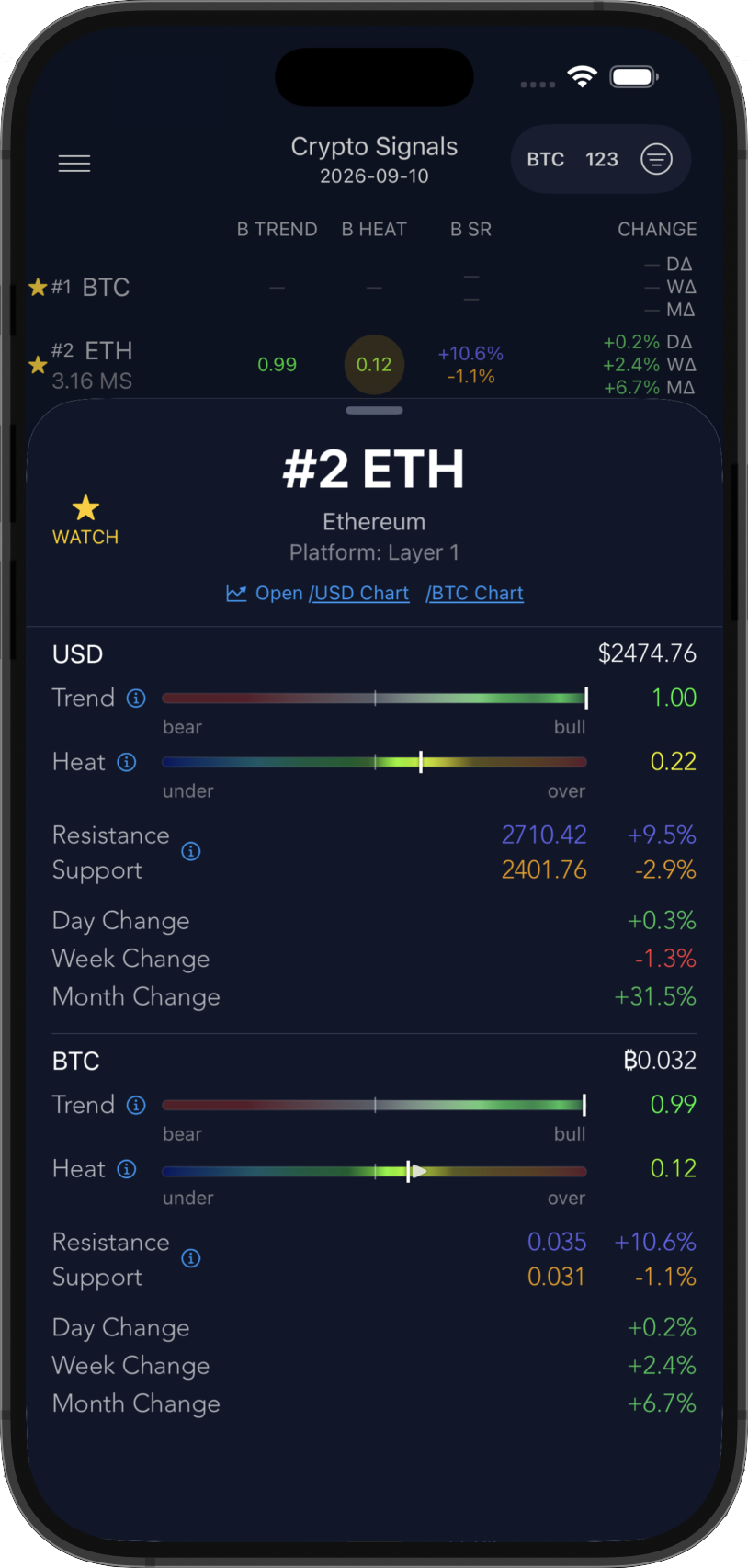
Tap a symbol to open its detail sheet, showing its full name and platform. Below are Trend and Heat, the nearest Support & Resistance levels with any SR event (e.g. Bo breakout, Bd breakdown), and day/week/month performance, in both USD and BTC.
Tap the Chart links for the symbol's full history with its indicators, or Watch to add it to your watchlist for comprehensive daily alerts. Swipe left or right to move between symbols.
When either a stock or crypto is selected from a signals page, the detail sheet gives you today's readings, but a snapshot rarely tells you enough. Is the Trend turning after a long run, or has it been flip-flopping while price sits in a range? Is that Support level one price has respected repeatedly, or one it has cut straight through before?
Tap Open Chart for the asset's full history with its indicators.
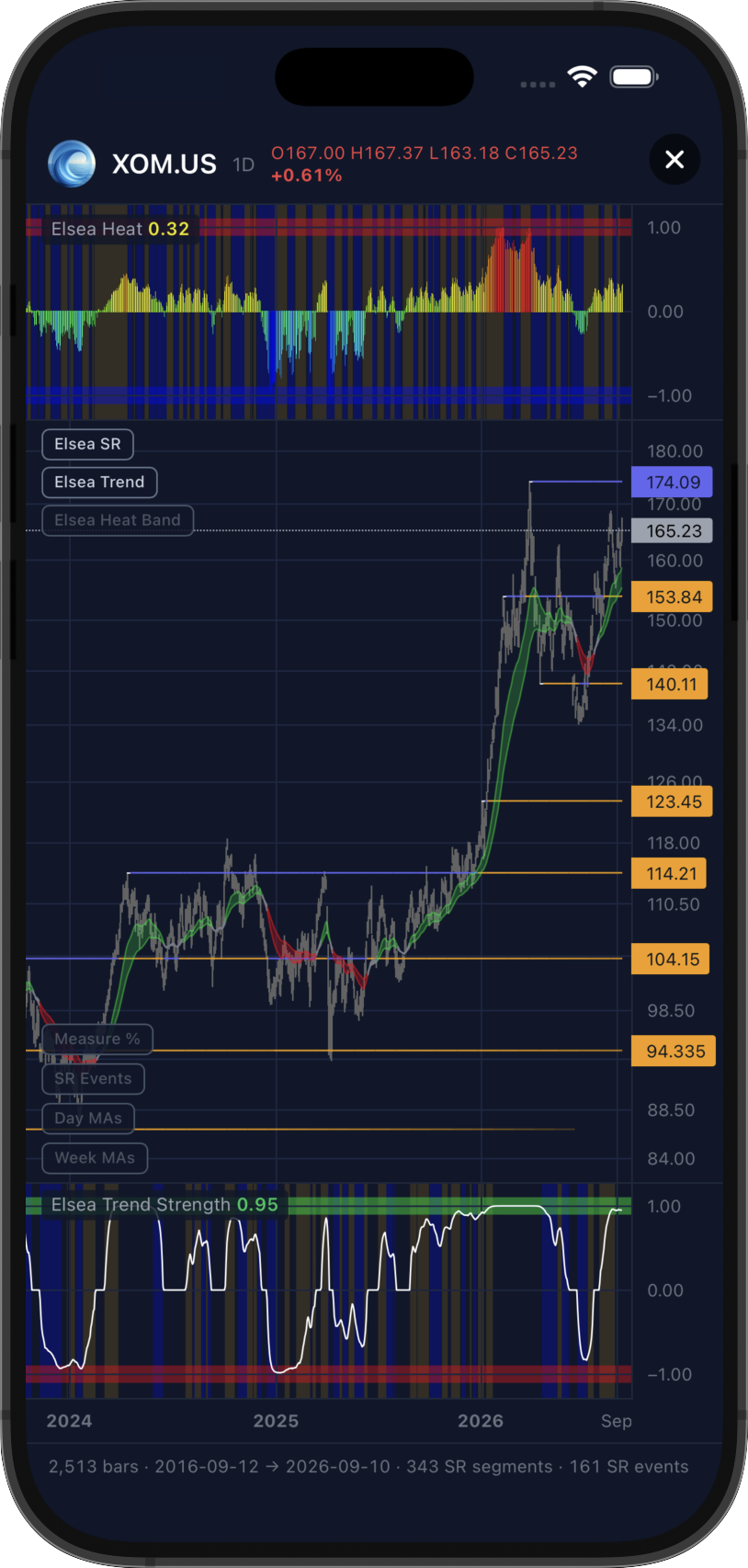
The chart unifies all Elsea signals in one view: Heat on top, price with Support & Resistance in the middle, and Trend Strength below. Background shading in the outer panes shows whether Heat is warming or cooling and Trend strengthening or weakening.
The Trend and Heat Bands, SR events, moving averages, and measurements can be overlaid using the buttons on the left.
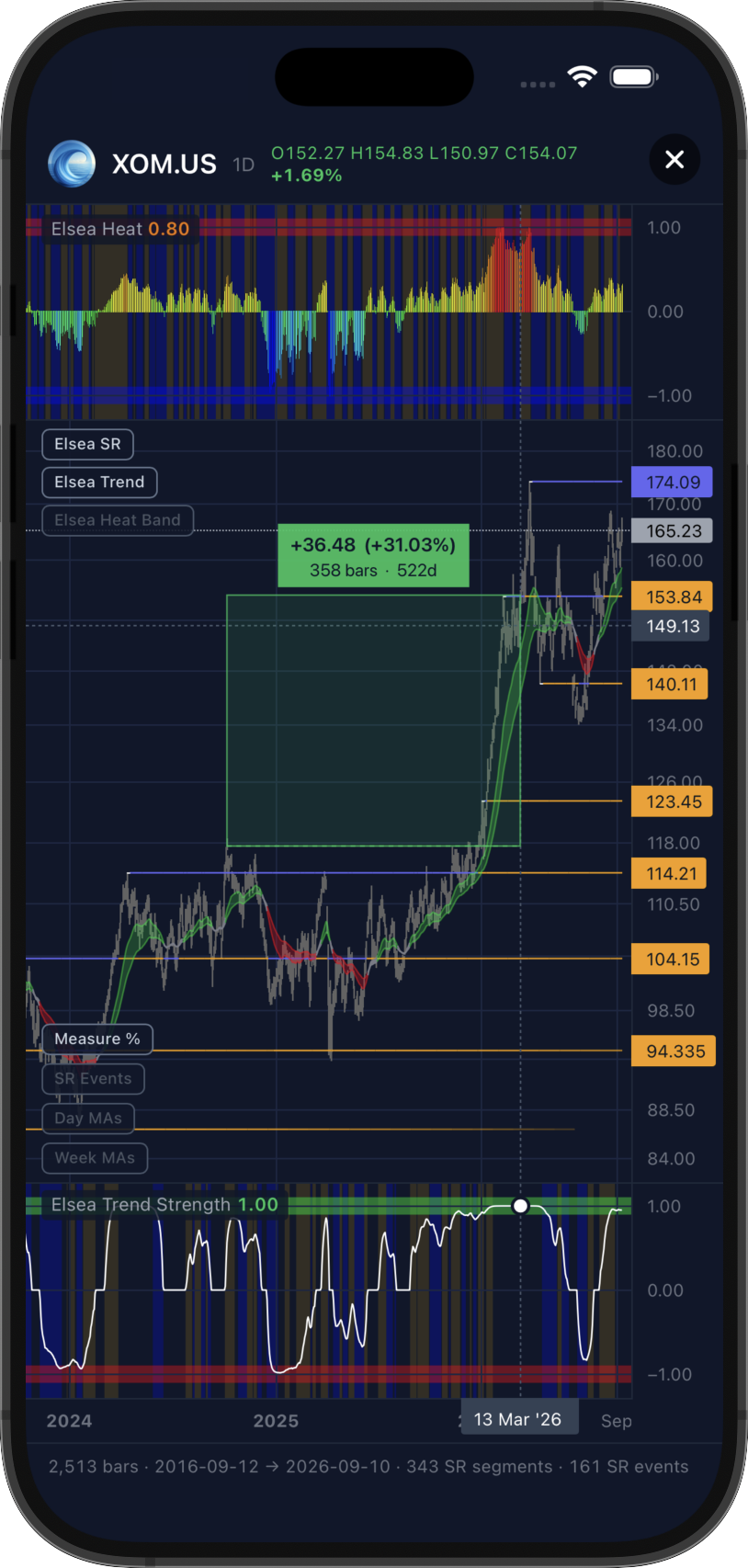
Tap Measure % and drag across the chart to measure a move from close to close. The box shows the change in
price and percentage, as well as the number of bars and days covered.
The crosshair also reads the indicators at that moment, so you can observe Heat and Trend Strength values at any point on the chart.
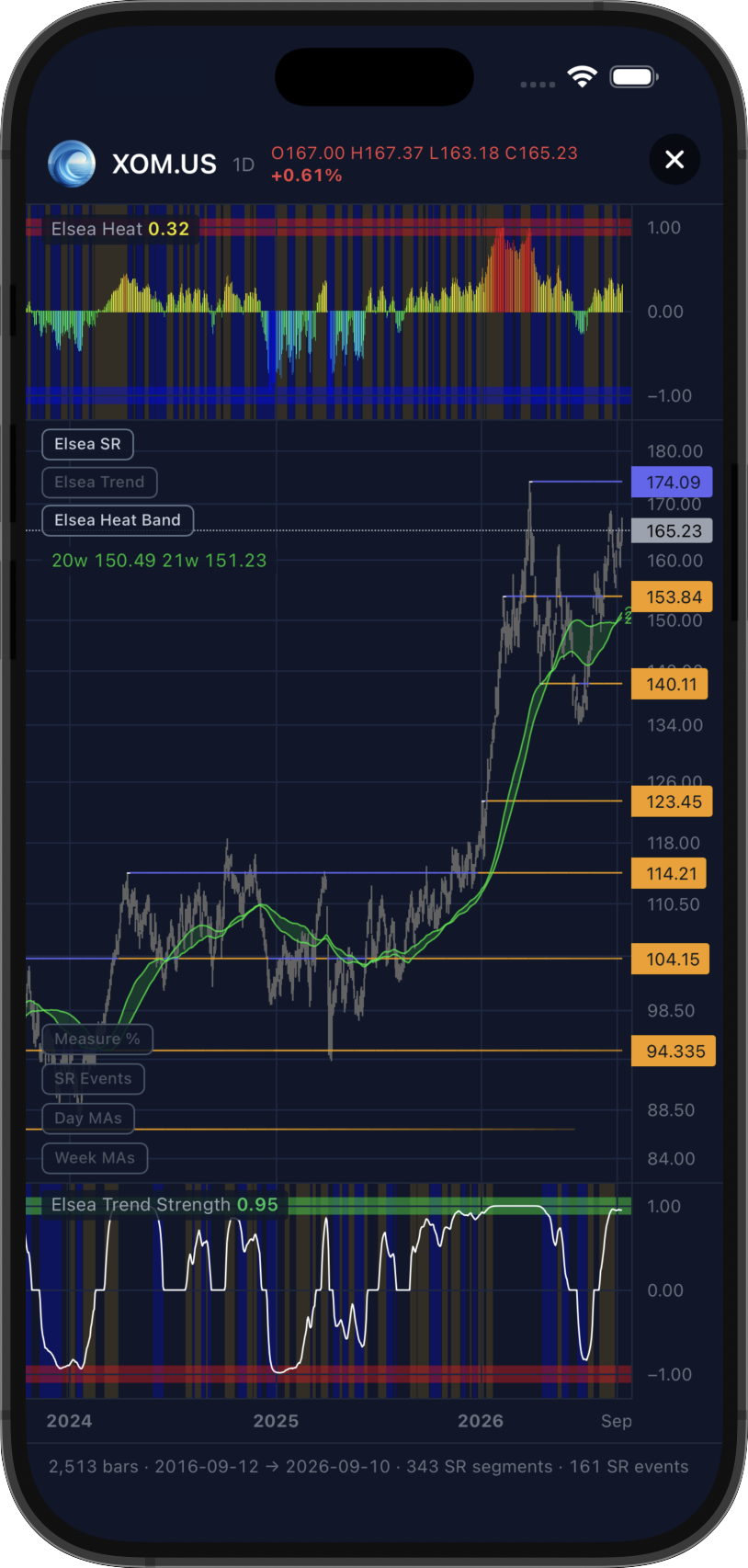
The Elsea Heat Band plots the 20-week simple and 21-week exponential moving averages, which establish the
baseline fair value of the Heat indicator.
Price holding above the band reflects medium-term strength, but readings near +1 warn of bubble-like conditions that often precede sell-offs. Sustained time below flags weakness, and the undervaluation that can bring medium-term opportunities.
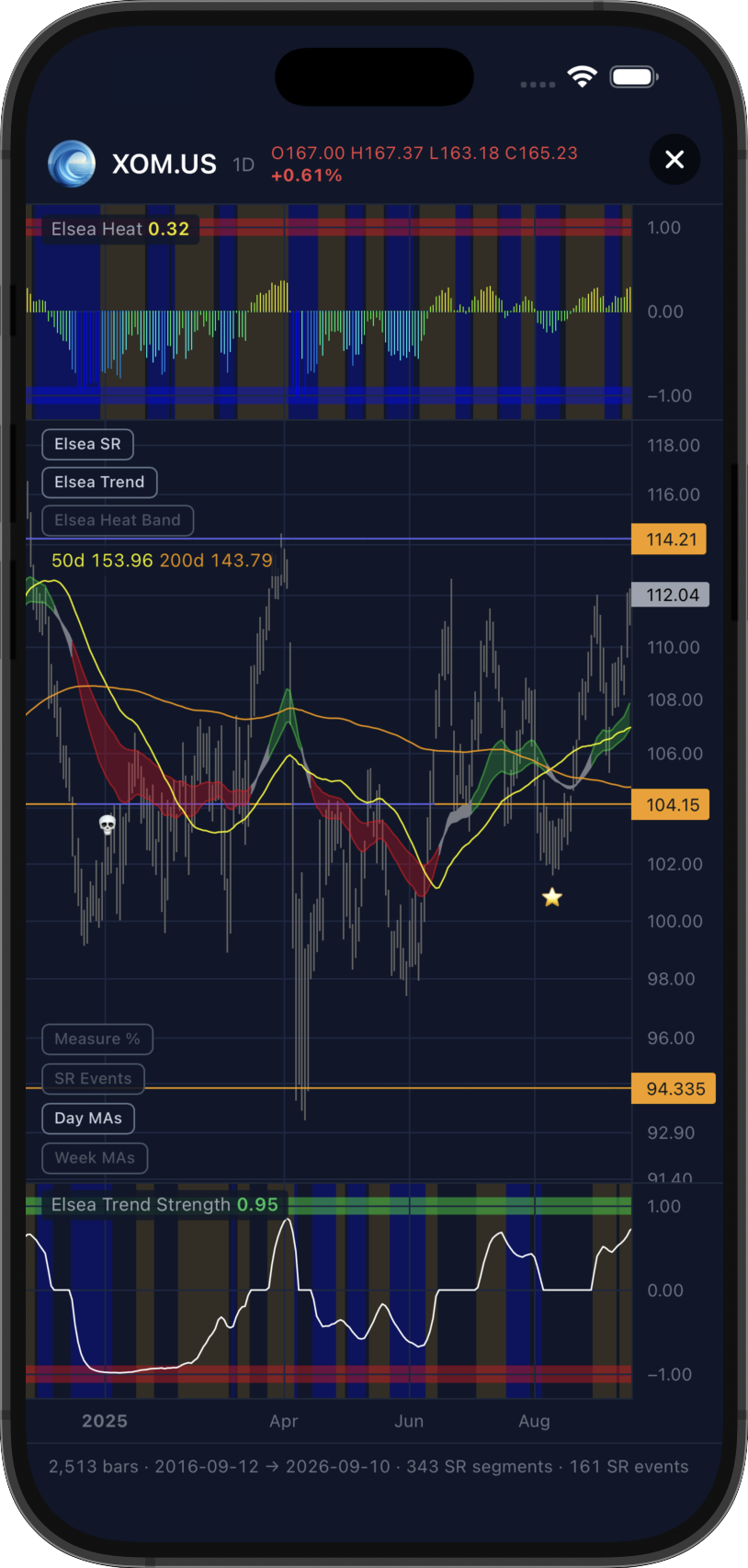
Day MAs plots the 50-day and 200-day simple moving averages. Where they cross is marked on the chart: a star
for a Golden Cross, where the 50-day moves above the 200-day, and a skull for a Death Cross, where it falls below.
Week MAs plots the 50, 100, 200 and 300-week simple moving averages.
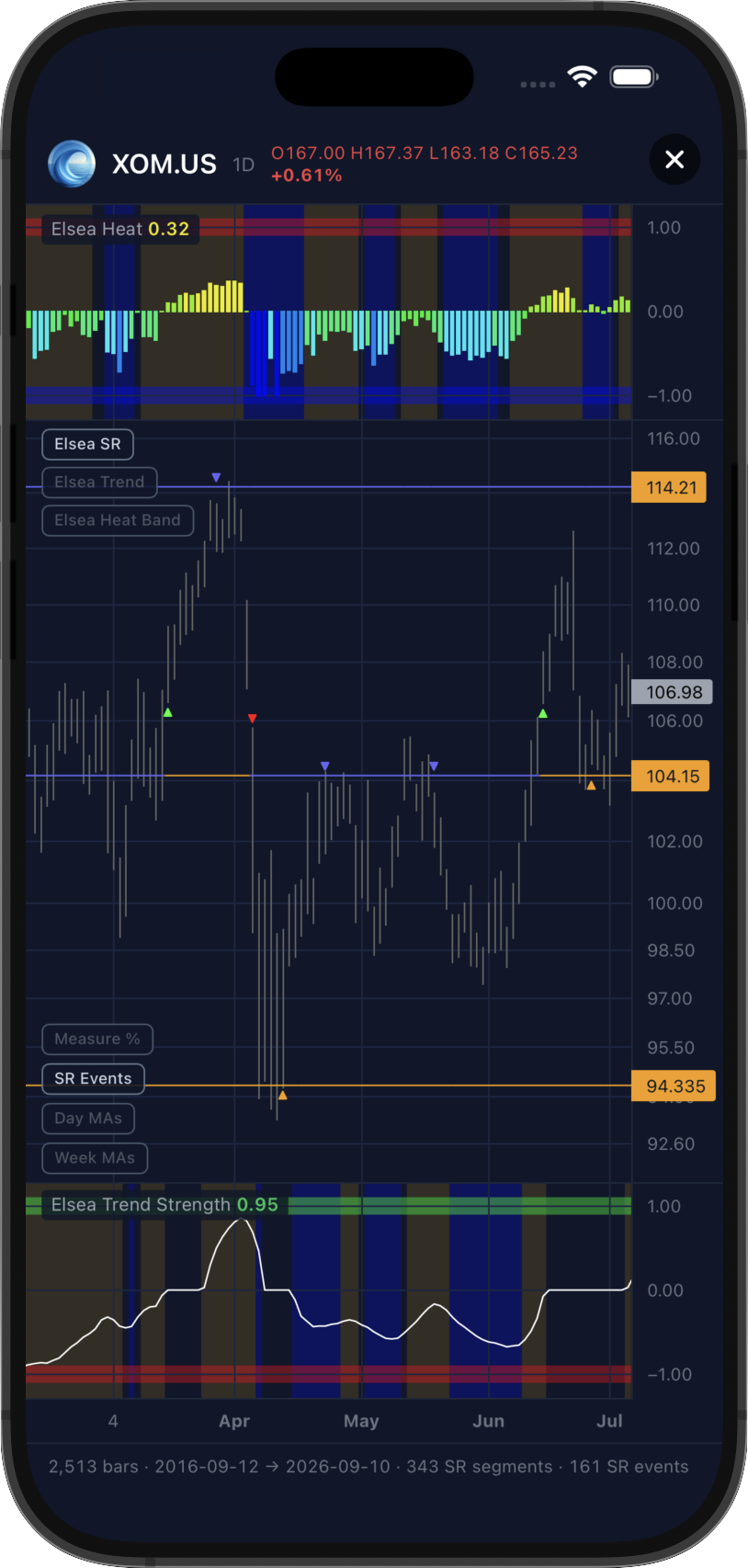
Elsea SR plots support and resistance levels as they form. SR Events marks each interaction with
a level: green and red triangles for breakouts and breakdowns, blue and orange for rejections and bounces.
Support and resistance levels persist due to human psychology. Prices where buyers and sellers have previously acted tend to trigger repeat behaviour, which is why price often reacts when revisiting them.
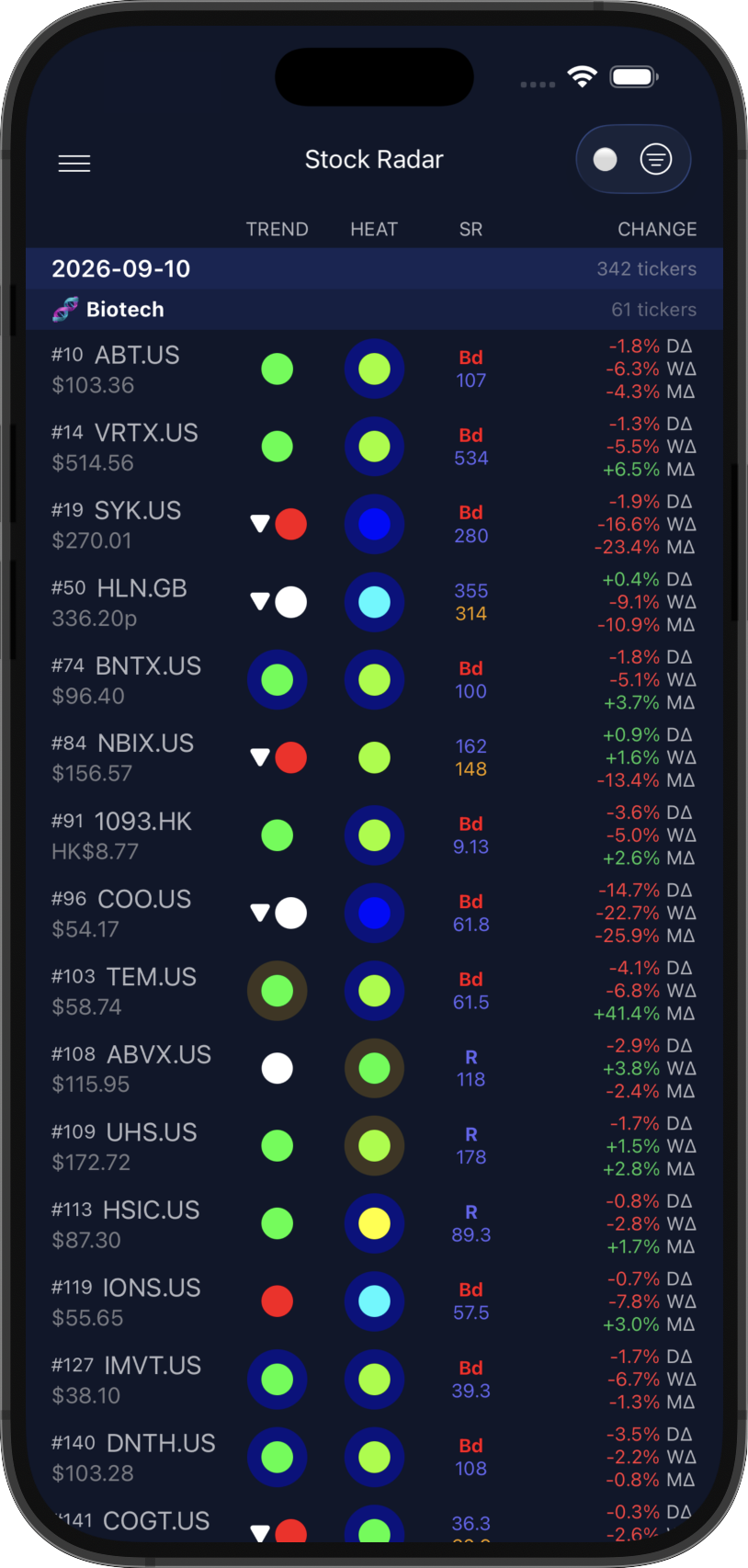
The Stock Radar shows all trend changes and SR events from the last 30 days, grouped into buckets.
Trend changes and SR events are on the radar because they are the most actionable of the signals: a trend change marks a shift in direction, and an SR event marks price interacting with a level that matters.
The same changes are sent through Telegram, provided Telegram Daily Stock Reports are enabled in User Settings.
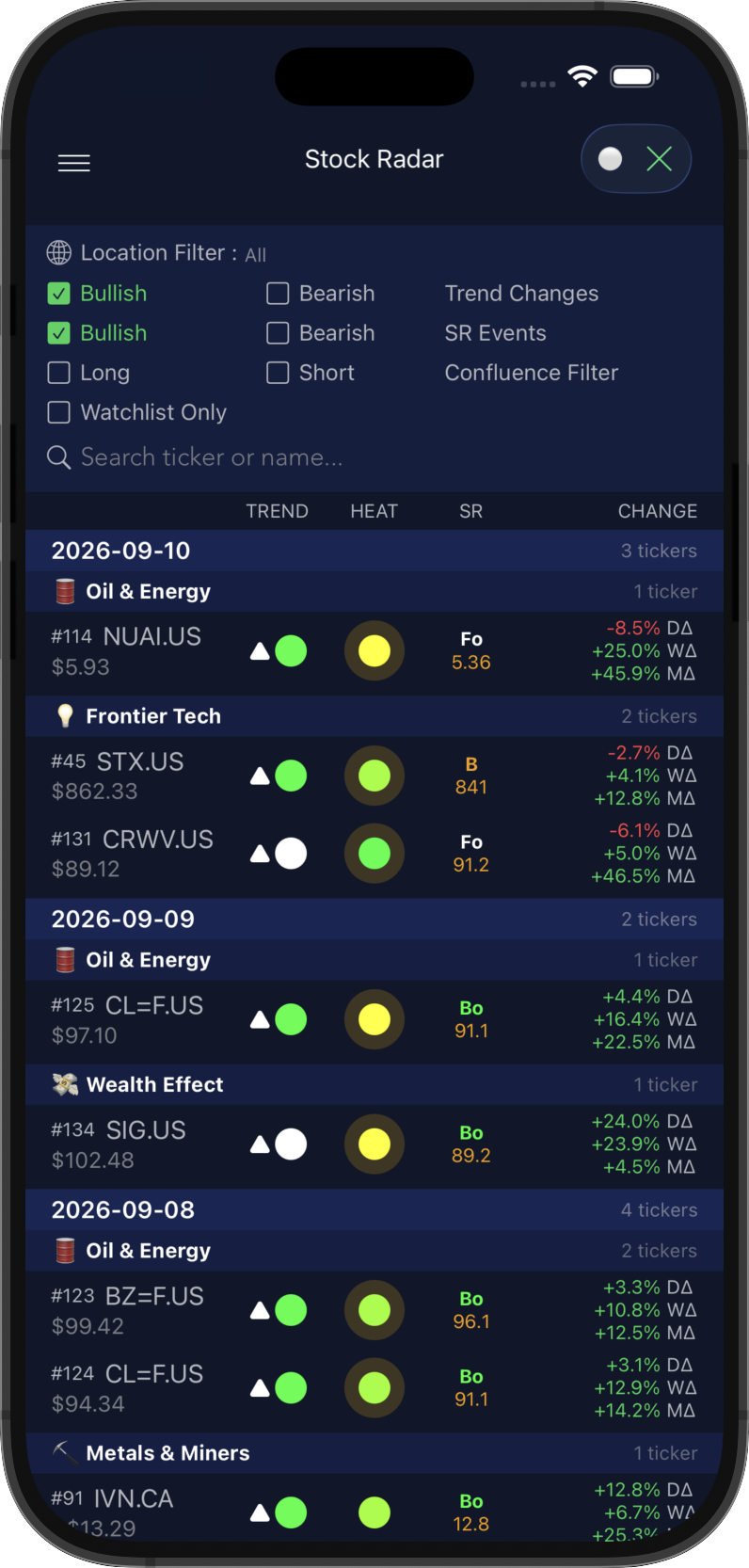
Filtering works as it does on the signals pages, though there is no sort function in the radar. The Dots / Values button switches how signals are displayed.
Tap a stock to open its detail sheet for expanded indicator readings, add it to your watchlist, or open its charts. Swipe left or right to move between stocks.
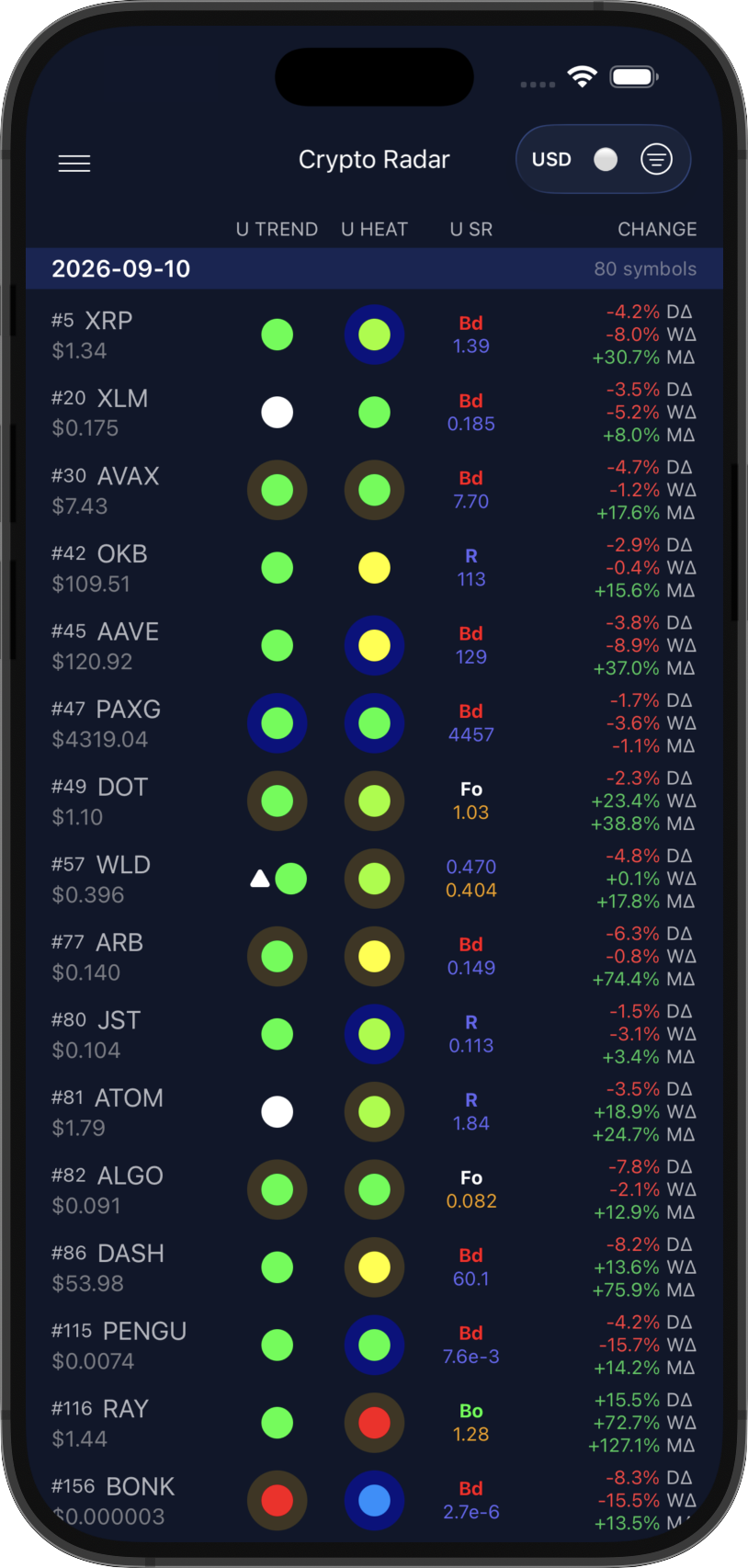
The Crypto Radar shows all trend changes and SR events from the last 30 days.
Trend changes and SR events are on the radar because they are the most actionable of the signals: a trend change marks a shift in direction, and an SR event marks price interacting with a level that matters.
The same changes are sent through Telegram, provided Telegram Daily Crypto Reports are enabled in User Settings.
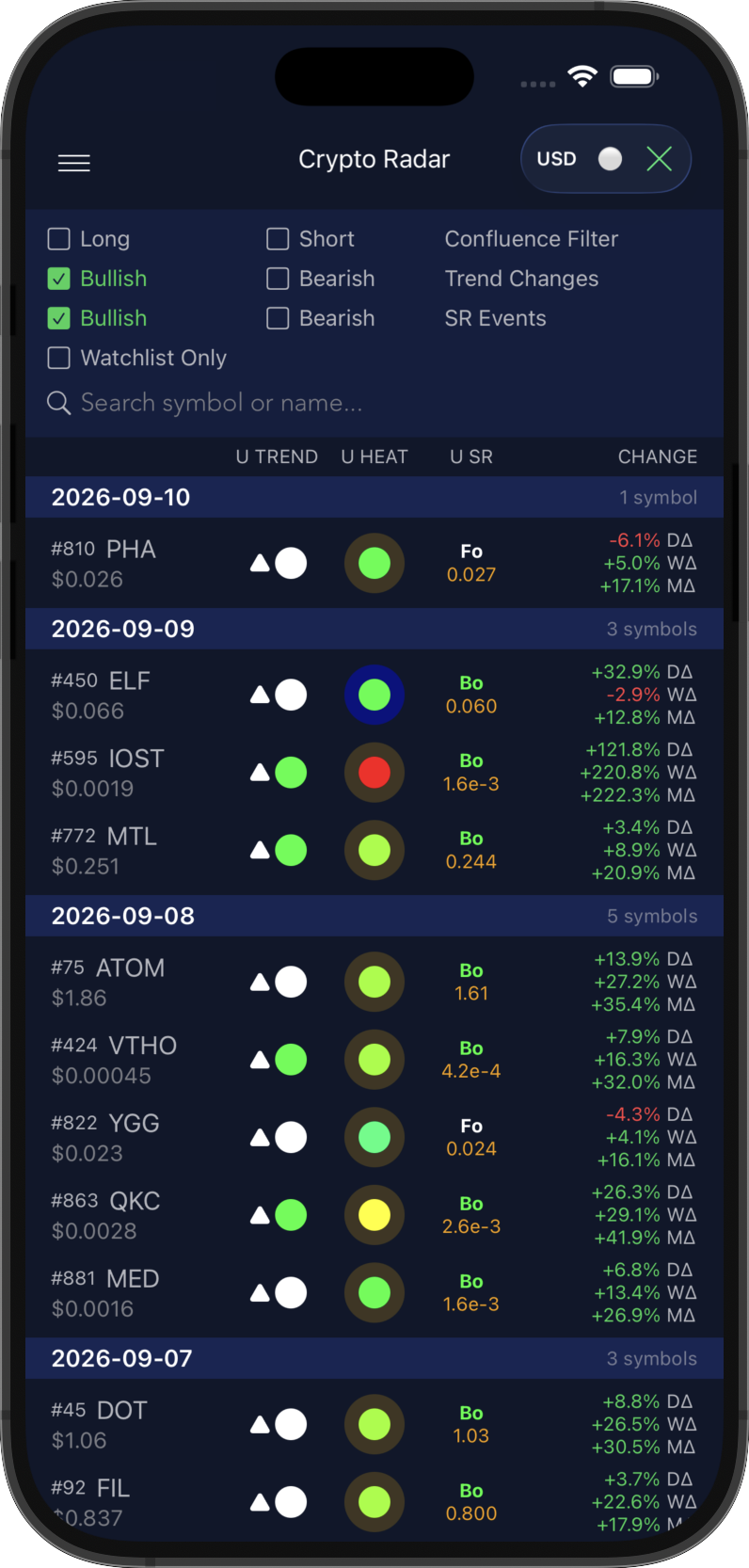
Filtering works as it does on the signals pages, though there is no sort function in the radar. The USD / BTC button switches the denomination, so the radar reads events against Bitcoin rather than the dollar, and the Dots / Values button switches how signals are displayed.
Tap a symbol to open its detail sheet for expanded indicator readings, add it to your watchlist, or open its charts. Swipe left or right to move between symbols.
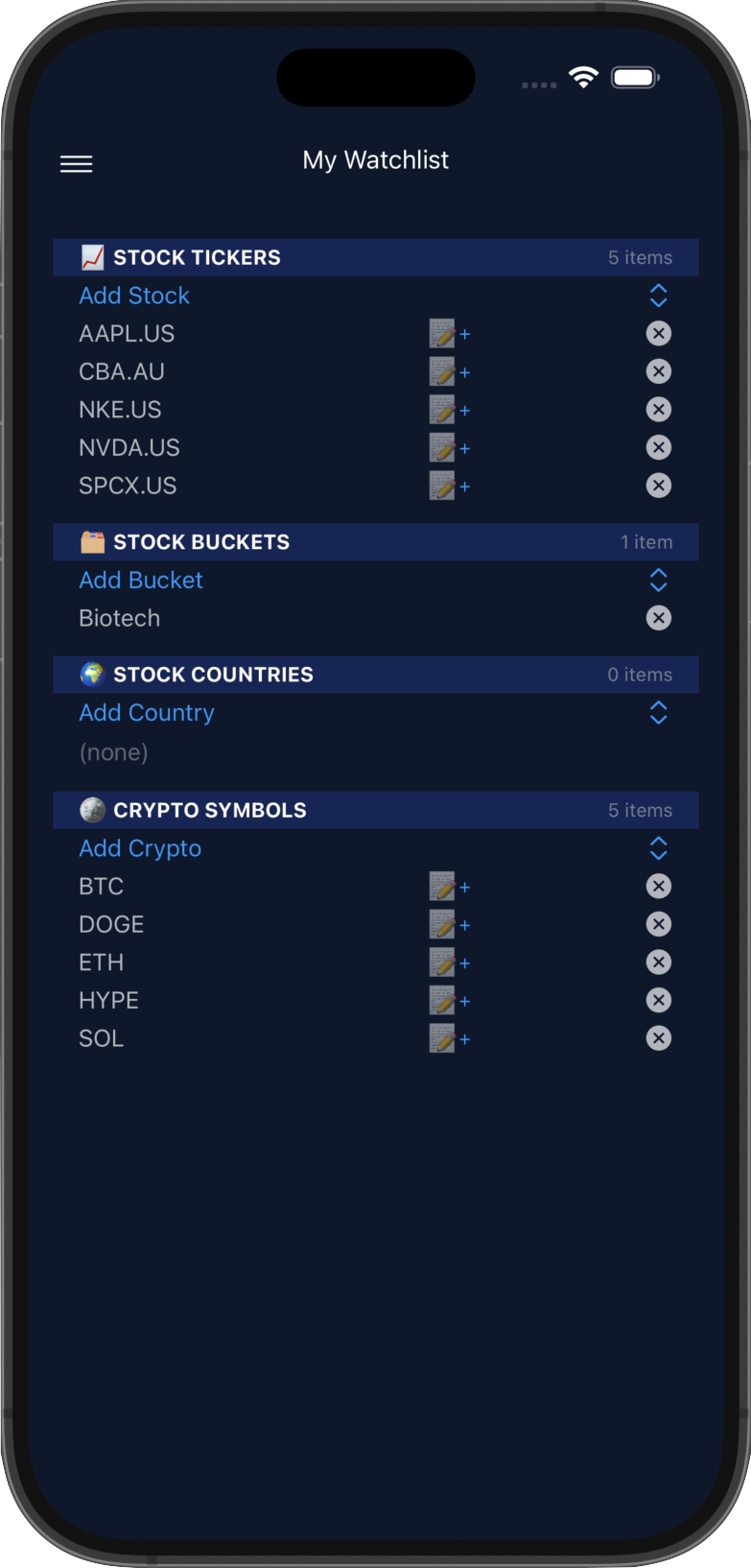
Watched assets receive alerts on a comprehensive set of conditions. In addition to the radar triggers, these cover trend direction changes, Heat extremes, and price nearing support or resistance.
Alerts arrive as push notifications and via Telegram. Both delivery methods, and the conditions that trigger them, are configurable in User Settings.
Tap an asset to open its detail sheet, and swipe left or right to move between them.
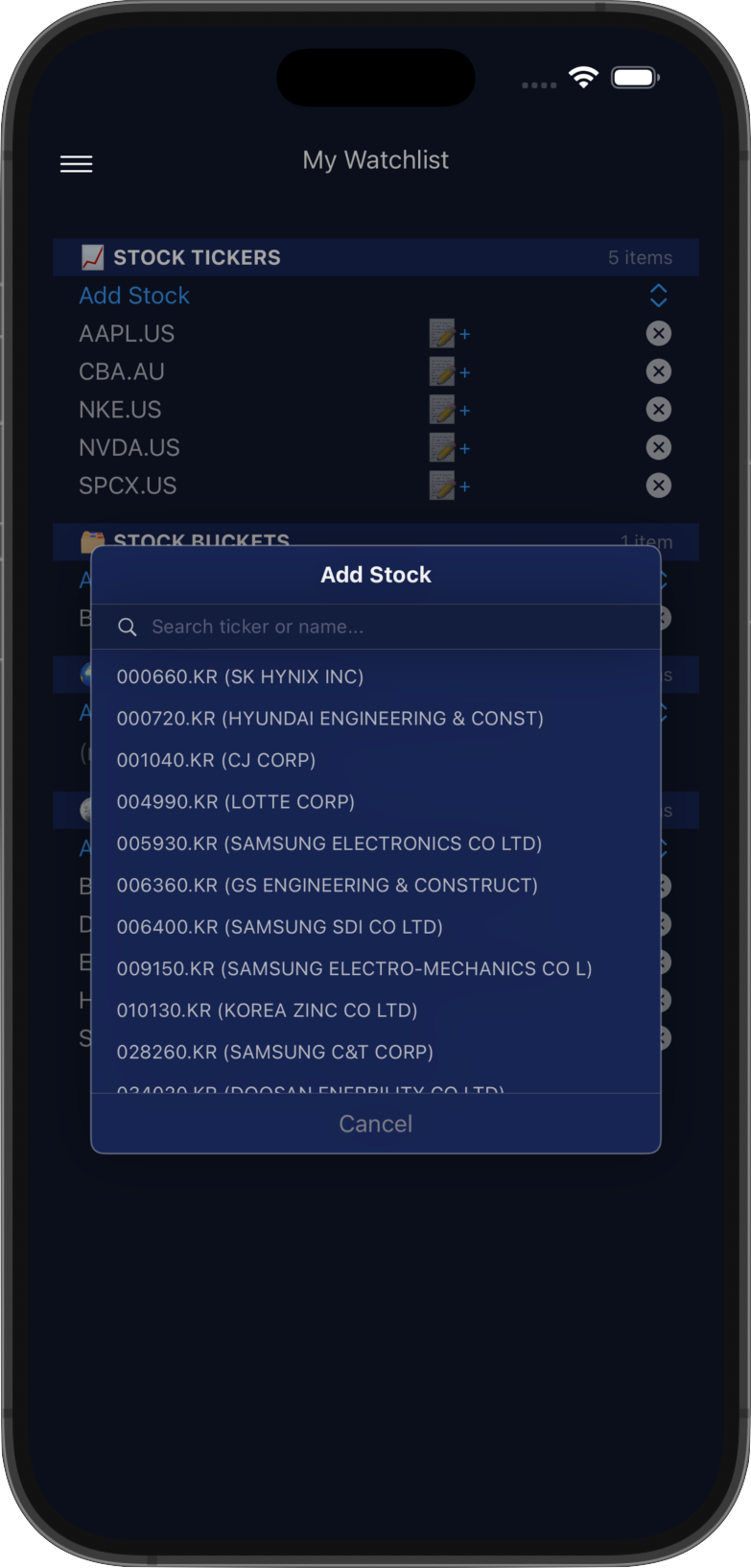
Tap Add Stock and start typing either the ticker or the company name. Matching stocks from the Elsea
universe appear as you type. Stocks can also be added to your watchlist directly from their detail sheet, using the star
button in the top left.
Stocks added individually get the full set of watchlist conditions, configurable in User Settings.
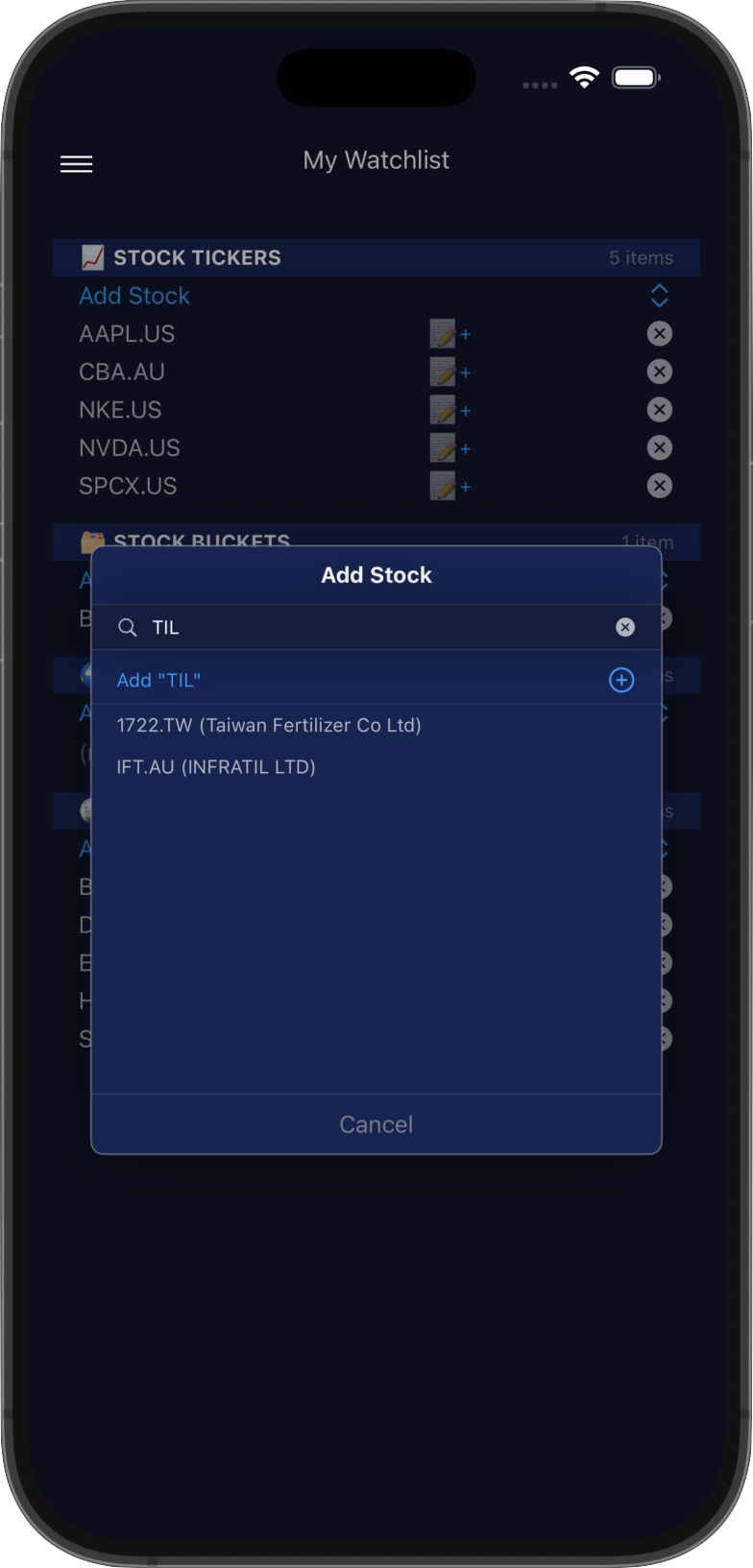
Elsea tracks a broad universe, but not every listed stock. If what you're after doesn't appear as you type, you can search for it and add it yourself.
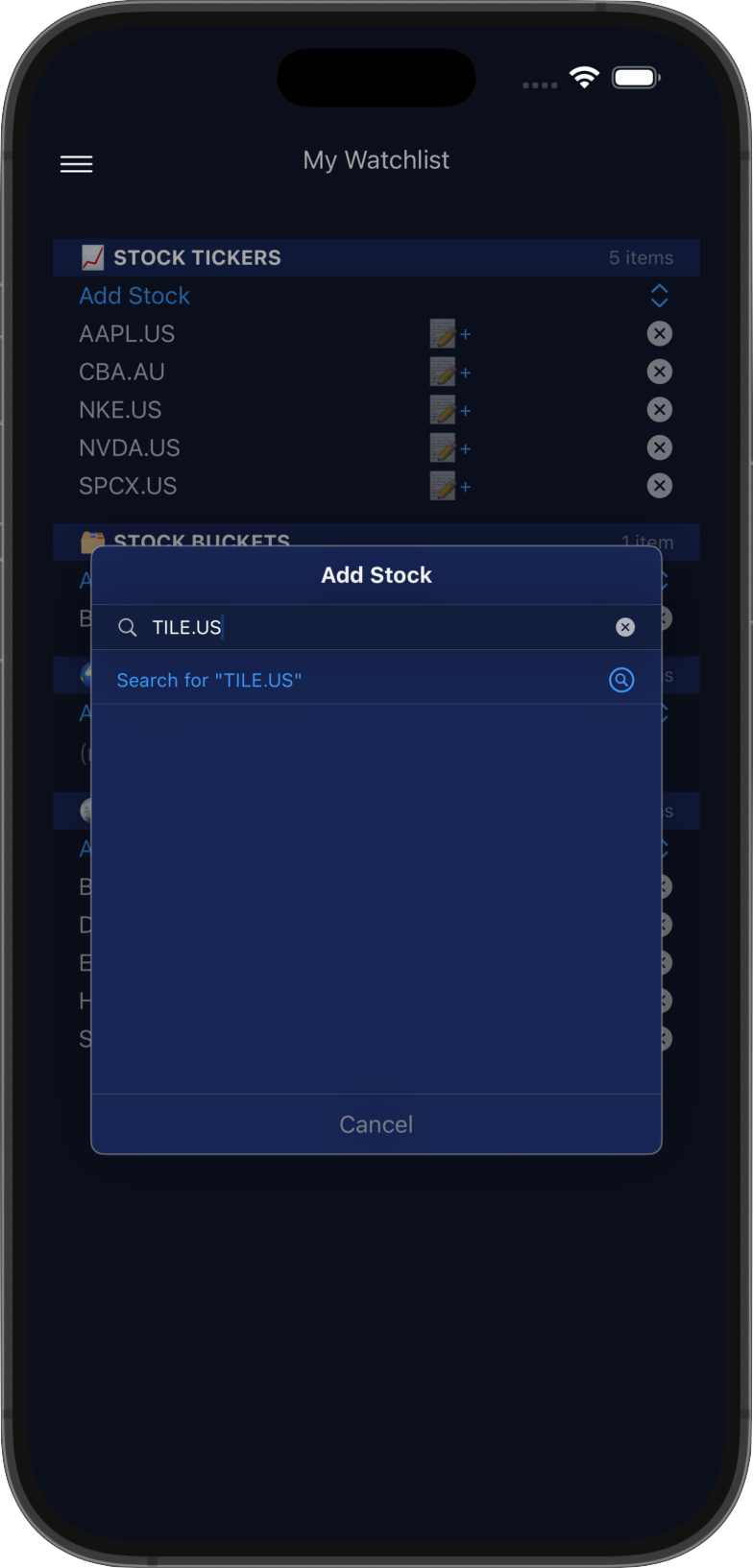
Type the full ticker including its location suffix, for example TILE.US, and the Search option will appear.
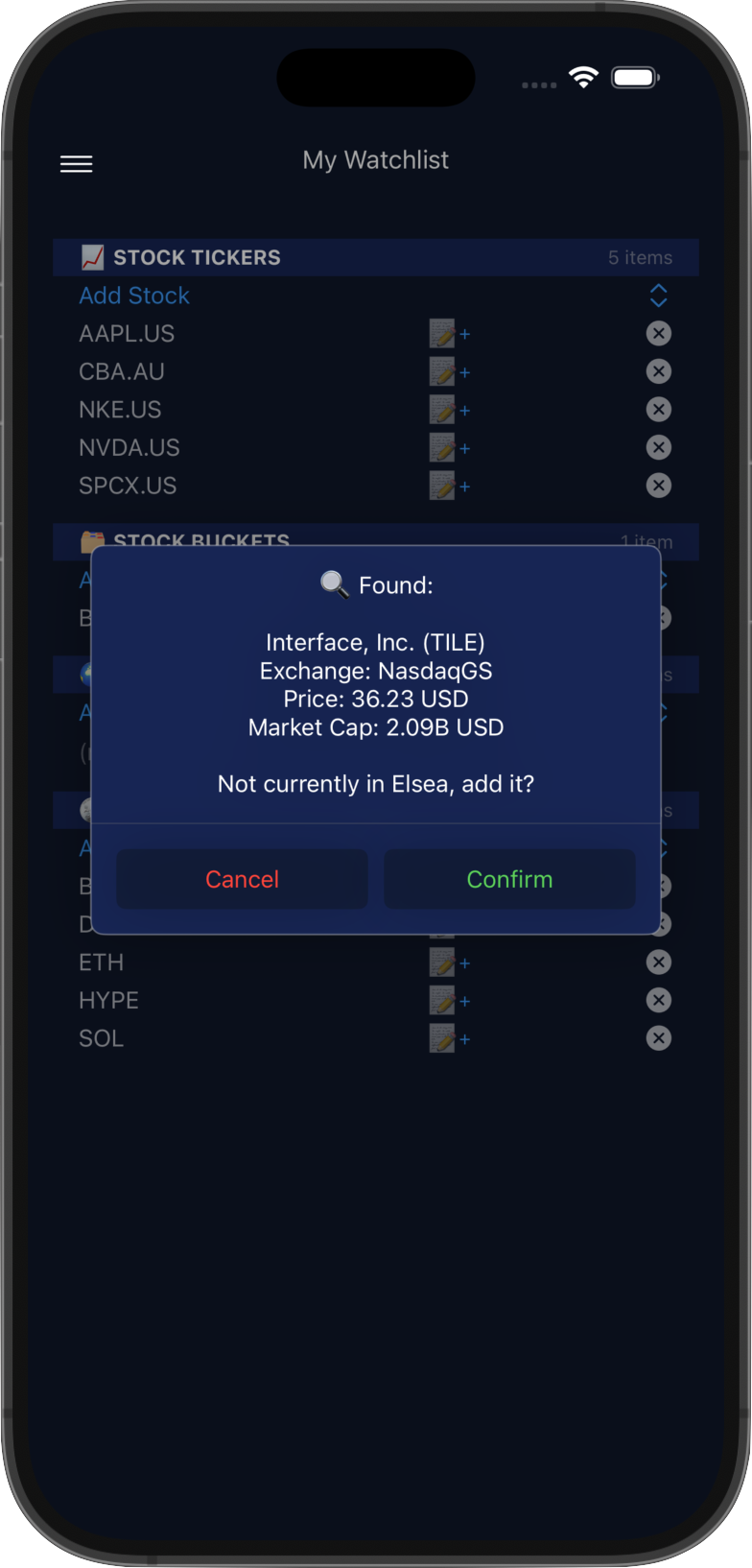
The search can take up to 30 seconds. Check the details match the stock you're after, then Confirm. It
joins your watchlist straight away, and its signals appear after the next trading day's run.
The stock is also added to the User Additions bucket, where it stays even if you later remove it from your watchlist. Over time it may move into one of Elsea's regular buckets if it comes to qualify for one.
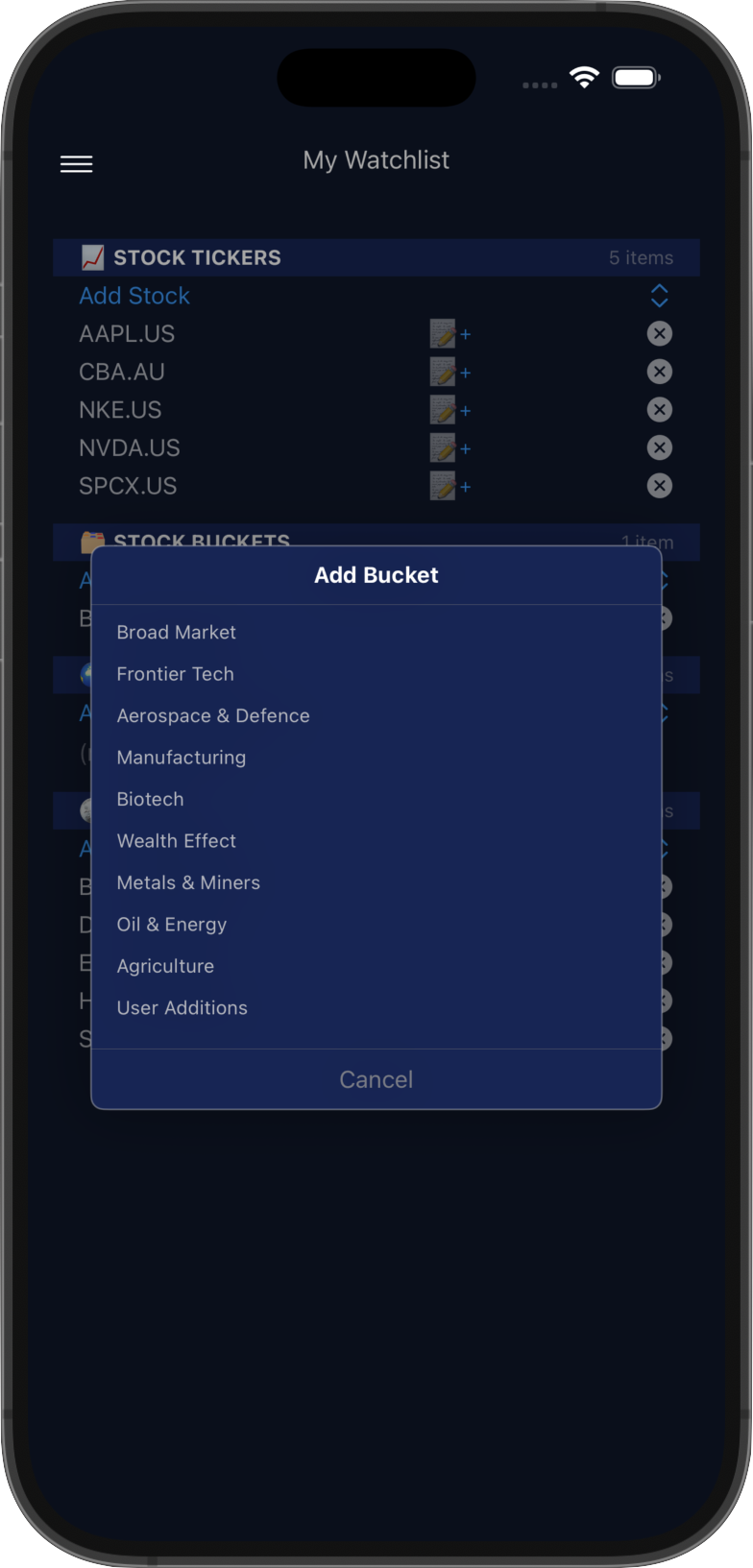
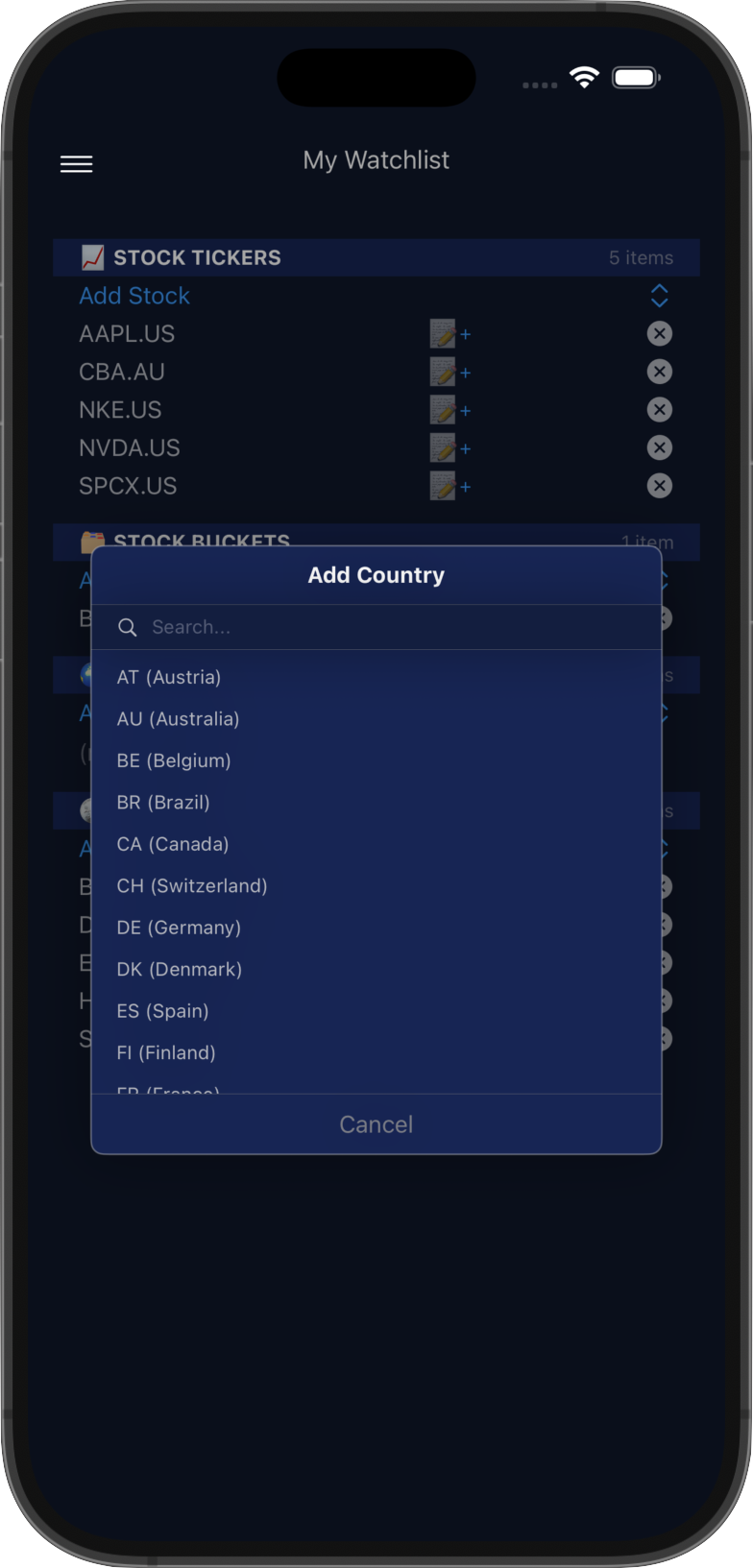
As well as watching individual stocks, you can watch a whole bucket or an entire country.
Buckets and countries combine to narrow your alerts, not widen them. Watching Biotech and AU together means Australian biotech stocks, not every biotech stock plus every Australian stock. Adding a second bucket, or a second country, widens that side: Biotech and Metals & Miners covers both.
Note that bucket and country alerts only cover trend changes and SR events, not the full set of watchlist conditions that individual stocks benefit from. Individually watched stocks are unaffected by your bucket and country selections.
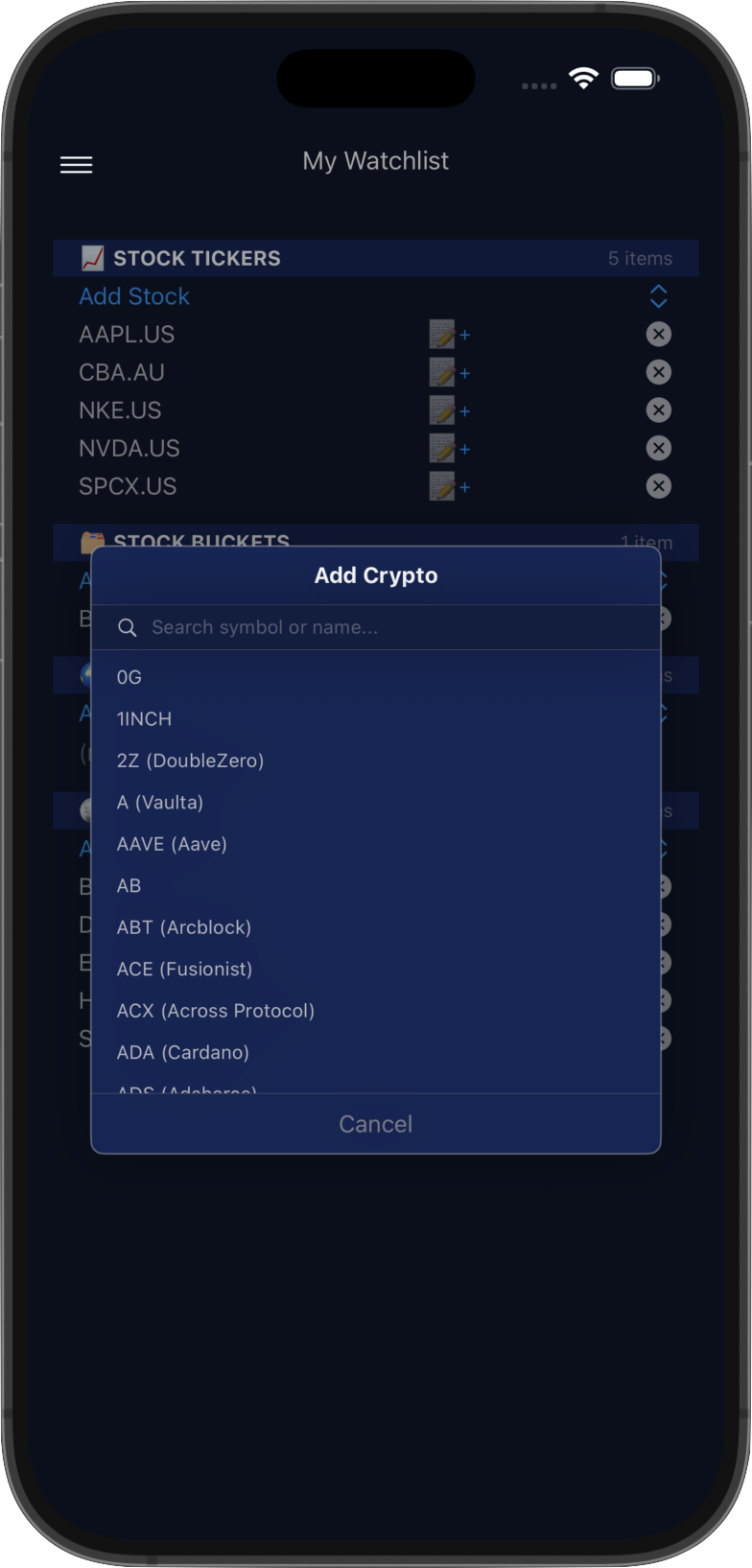
Tap Add Crypto and search by symbol or name. Unlike stocks, crypto can only be added from Elsea's tracked
universe; there's no option to search for something outside it. Cryptos can also be added to your watchlist directly from
their detail sheet, using the star button in the top left.
Cryptos added individually get the full set of watchlist conditions, configurable in User Settings.
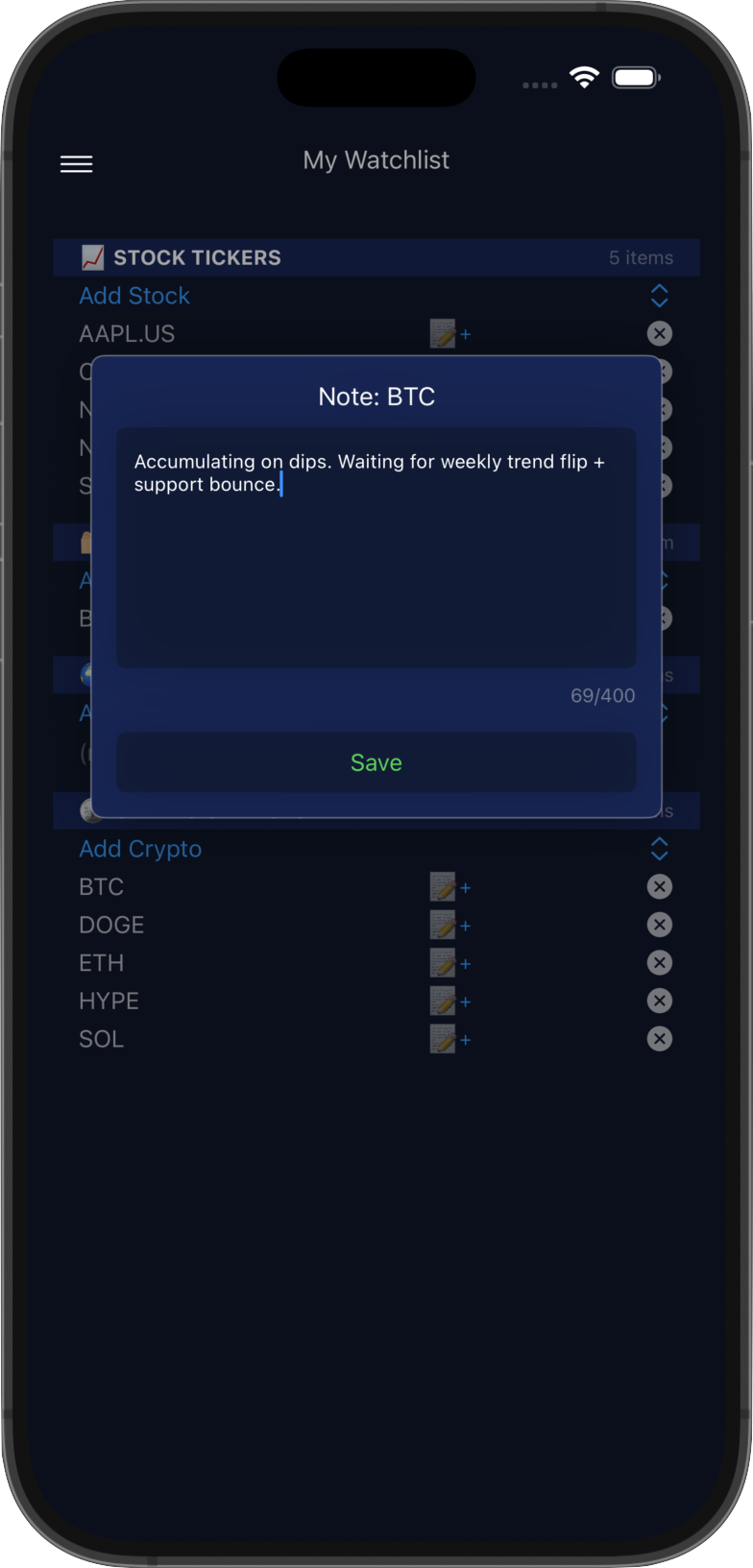
Keep a note on why you're watching an asset. Tap the note icon beside any individually watched stock or crypto,
type your note, and tap Save.
Notes can be up to 400 characters, shown by the counter below the text box.
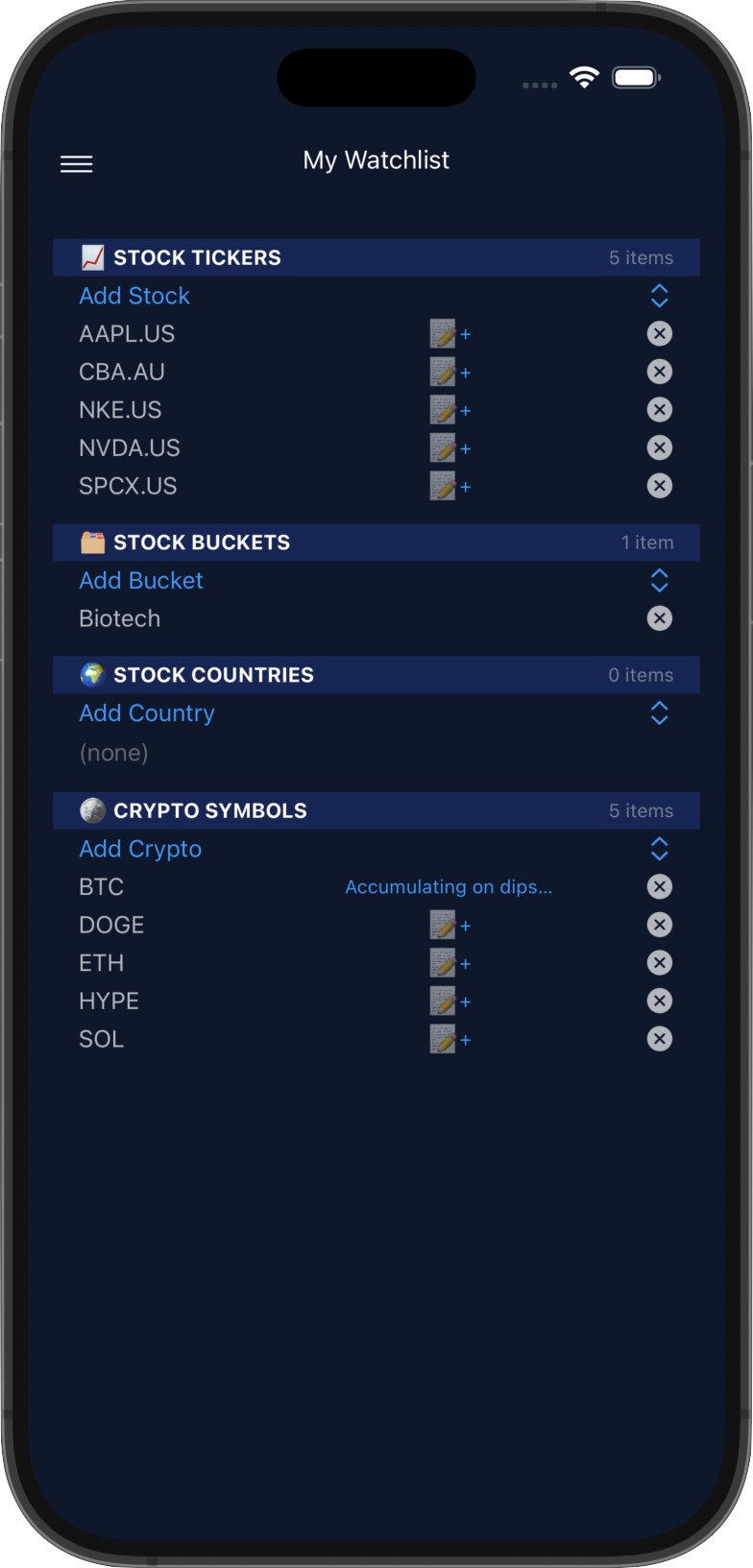
Once saved, a preview of the note replaces the icon in your watchlist, so you can see your reasoning at a glance.
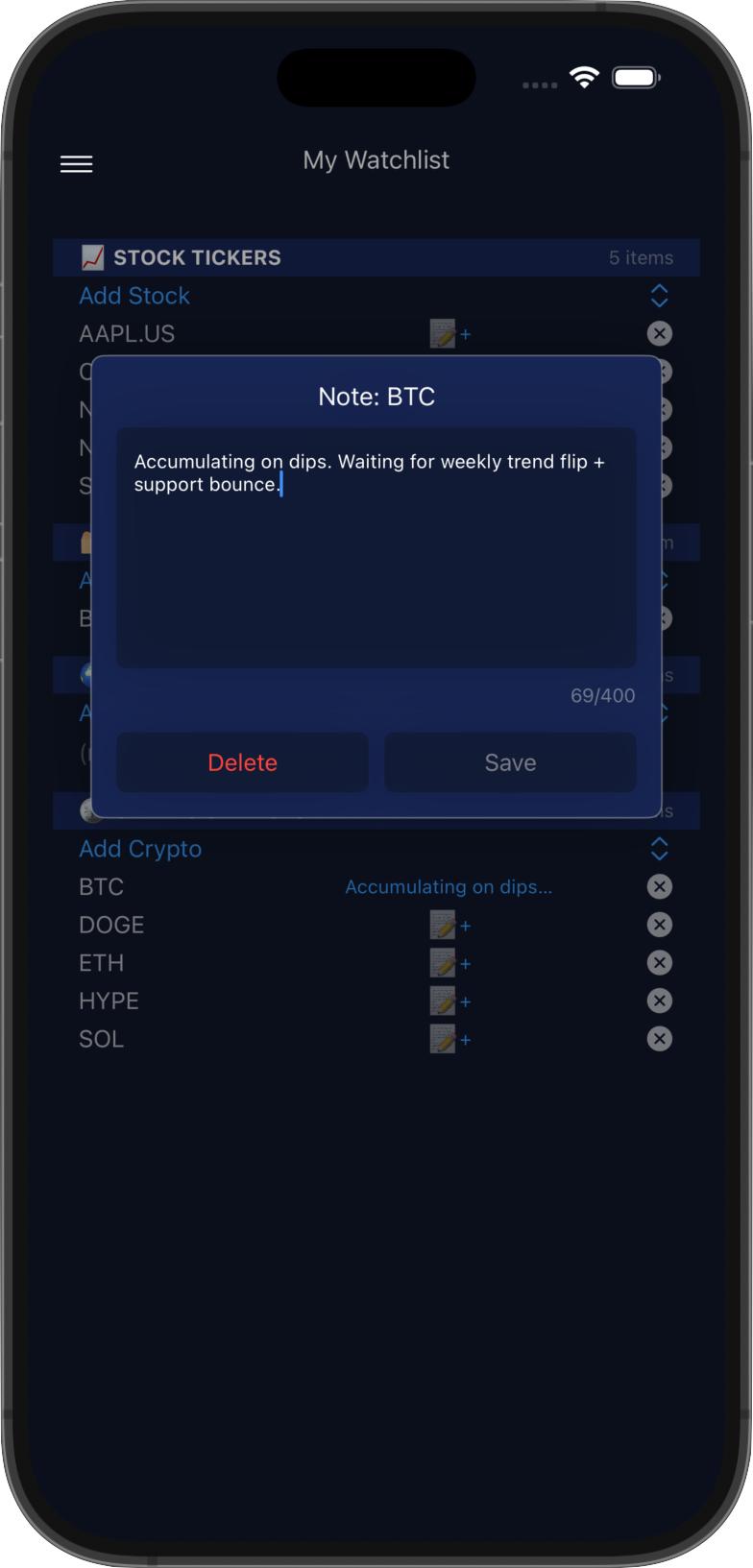
Tap the preview to open the note again. Edit it and tap Save, or tap Delete to remove it.
Notes are available for individually watched stocks and cryptos, not for buckets or countries.
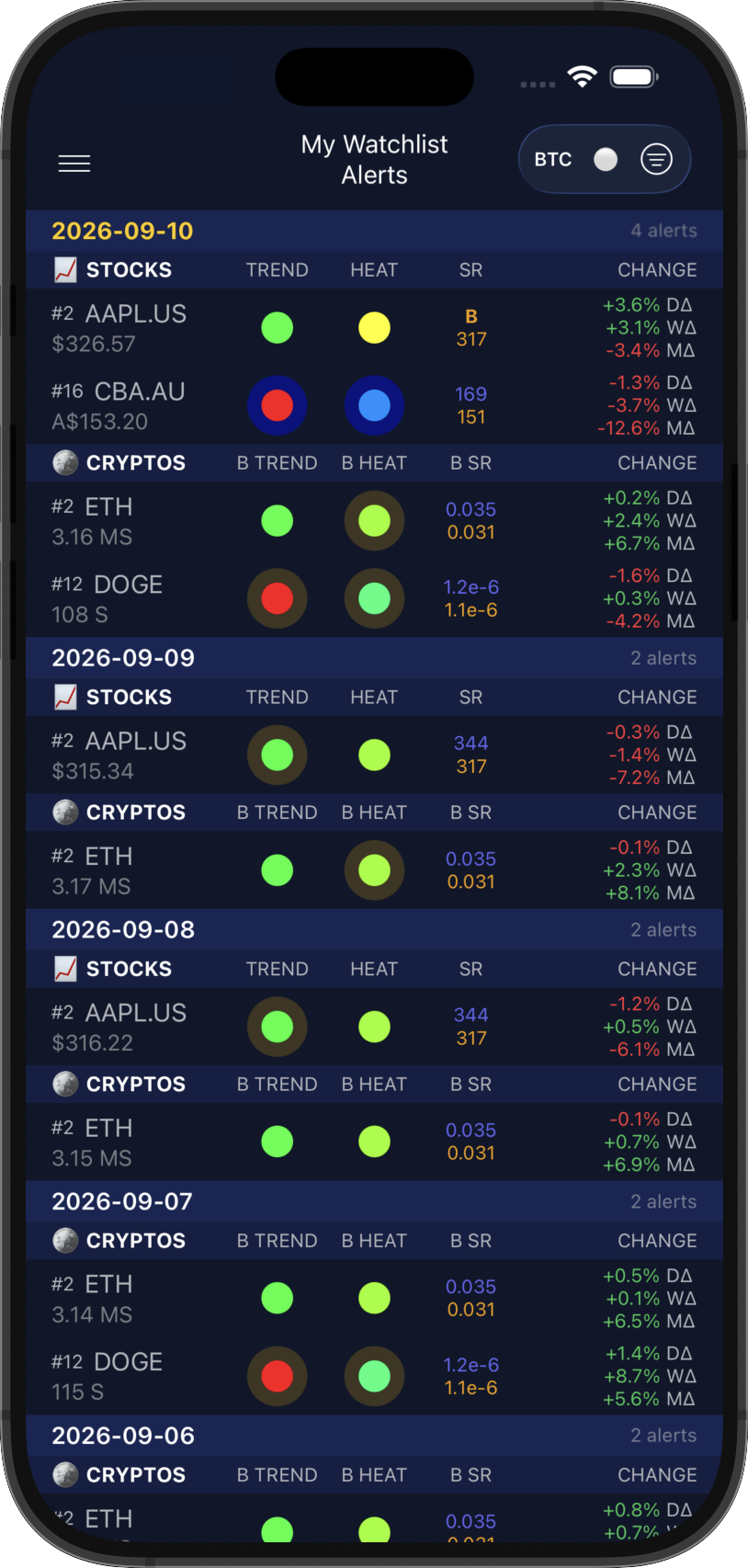
Every alert triggered by your watched assets, grouped by date, stocks then cryptos.
The USD / BTC and Dots / Values buttons work as they do elsewhere, and filtering matches the radars.
Tap a stock or symbol to open its detail sheet, and swipe left or right to move between them.
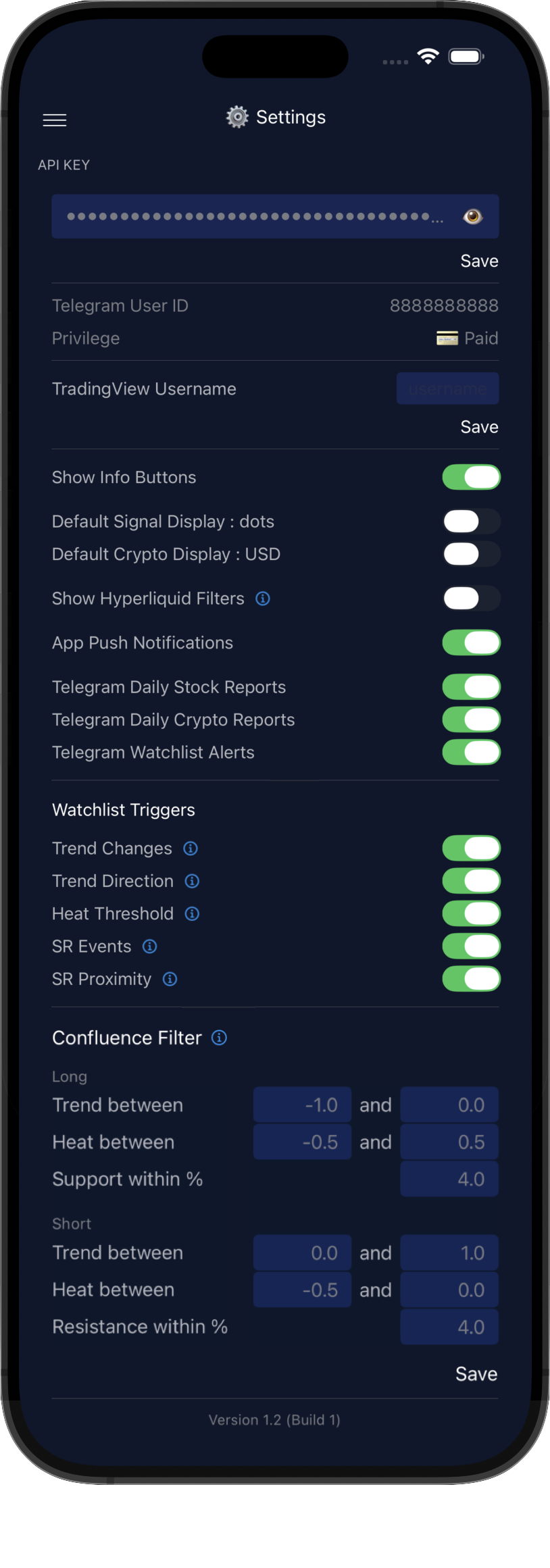
API Key: paste your subscriber key and tap Save.
Enter your TradingView Username and tap Save to grant access to the Elsea indicators.
Show Info Buttons places blue ⓘ icons throughout the app, tappable for an explanation.
Default Signal & Crypto Display set the look at launch, Dots or Values and USD or BTC.
Show Hyperliquid Filters adds an option to hide cryptos not listed on Hyperliquid.
App Push Notifications controls app alerts. Make sure Elsea notifications are enabled in your phone's settings.
Watchlist Triggers chooses which conditions alert on your individually watched assets.
Confluence Filter sets the thresholds behind the Long and Short options on the signals pages, defining what a setup worth looking at means to you. Tap Save to apply.
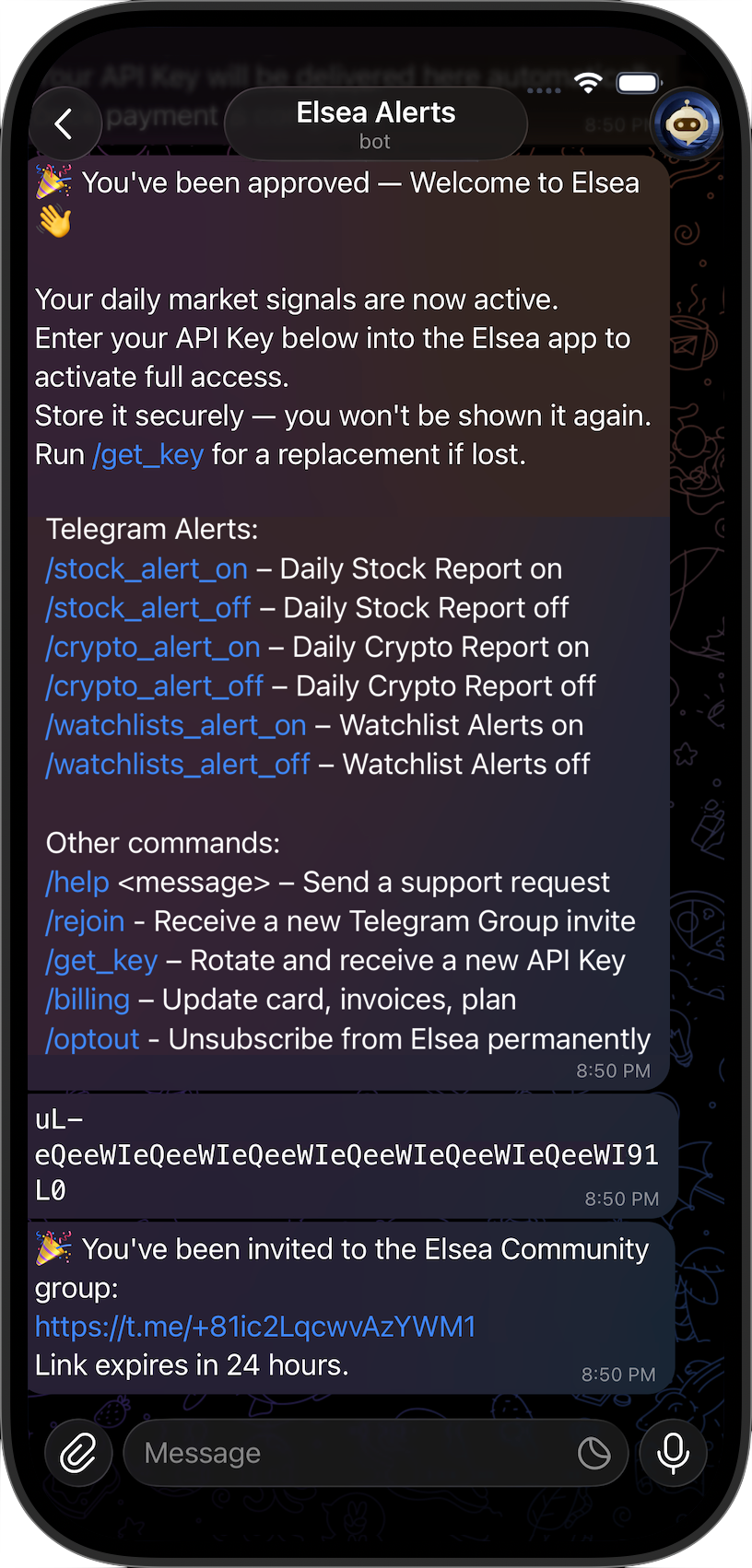
Subscribers manage their subscription through their chat with the @ElseaAlertBot, which also delivers daily stock and crypto reports, watchlist alerts, and the weekly market brief.
Send /start at any time to bring up the command list.
The free version of the app collects no personal data.
For subscribers, Elsea stores only your Telegram chat ID, Telegram public name, TradingView username, watchlist, notes, alert settings and push notification tokens.
To delete this data, send /optout to the
@ElseaAlertBot. Your subscriber record and
all associated data are permanently deleted. Your API Key remains valid until the end of your paid period, then expires. You
can also email support@elsea.app with your Telegram User ID, shown in
User Settings.
Payment records are held by Stripe, not Elsea, and are retained by Stripe as required by law. See our Privacy Policy for details.